
Are you fed up with Epson P900 smudges on black and gray prints? This is a common issue, especially on Epson P900 printers. And it's not so hard to fix on your own. This is what you have to do.
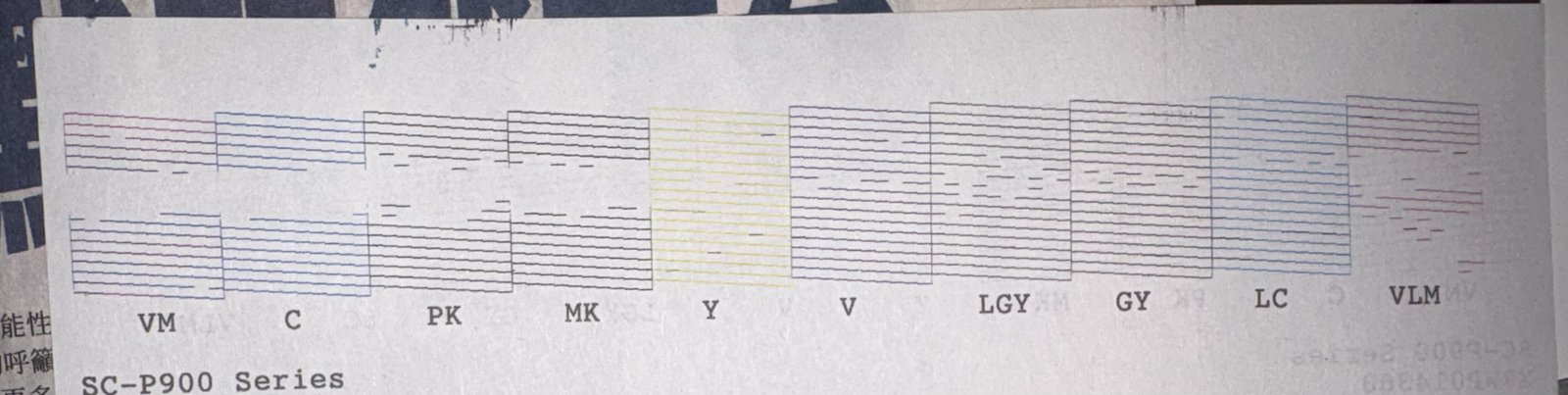
If the smudge shows up in the same spot on every print, even on a big A2 sheet, it’s rarely a clogged nozzle. A clog gives you lines or missing color. Epson SureColor P900 black ink smudge in the same place means something physical is touching the paper, or ink is sitting where it shouldn’t.
Step 1: Print a nozzle check first for Epson P900 lines on print
Run a nozzle check from the printer menu. If every line prints cleanly, your printhead is fine and the smudge is coming from somewhere else. If lines are missing or broken, run one cleaning cycle, then check again. Don’t run cleaning over and over. Each cycle uses a lot of ink and fills the maintenance box faster.

Step 2: Look at the paper path
With the printer off, shine a flashlight along the paper path. Check these spots to fix Epson P900 gray ink problem:
- The platen (the surface under the printhead). Look for dried ink spots or paper dust.
- The feed rollers. Ink or dust on a roller leaves a mark at a regular spot, which matches what you’re seeing.
- The underside of the carriage. Wipe away any ink drips you can see.
- The edges of the paper. Curled or wavy paper can brush the printhead and drag ink across the print.
Use a lint-free cloth lightly dampened with distilled water. Never pour liquid into the printer.
Step 3: Should you use isopropyl alcohol to fix Epson P900 Smudges
I tried alcohol on the printhead too, and it did seem to help a little. But Epson doesn’t recommend putting it on the head or on the rubber parts. It can dry out the seals and damage them over time. Use distilled water for the outside surfaces. For anything deeper, Epson sells Epson P900 printhead cleaning kits made for this.
Step 4: Check the ink and the maintenance box
Make sure your cartridges are seated firmly and none are leaking at the base. Also check the maintenance box. If it’s nearly full, the printer can’t handle waste ink properly.
Step 5: Try a test on different paper to fix printer smudges
Print the same image on fresh, flat paper from a new pack. If the smudge goes away, the problem was your paper, not the printer.
Conclusion
Taking the printer apart is a big step. Do it only if cleaning and testing don’t help. The Epson’s service documents are good, but opening it up can void your warranty. If you’re still under warranty, call Epson service first. If the smudge stays in the exact same spot after everything above, a technician may need to look at the carriage or the paper feed.