
Is your Brother printer showing Offline, refusing to print, or producing pages with missing lines and colors? You don't always need a technician to get it working again. Many common Brother printer problems come from a lost connection, stuck print jobs, incorrect printer selection, or print-head issues.
This guide explains how to fix Brother printer problems step by step. We will first look at common offline issues on Windows and network printers. Then, we will cover a separate section for Brother GTX machines and explain how to fix clogged print head Brother GTX problems.
Because Brother makes many different printer models, menu names can vary. Use the instructions that match your printer and operating system.
Why Is My Brother Printer Offline?
When your computer says that a Brother printer is offline, it usually means the computer is not communicating with the printer correctly. The printer may still be powered on, but the connection between the two devices may have stopped working.
Common causes include:
- The printer is turned off or showing an error.
- The Wi-Fi connection has been lost.
- Your computer and printer are using different networks.
- A USB cable is loose or connected through a hub.
- A print job is stuck in the queue.
- Windows selected another printer.
- Multiple copies of the same Brother printer are installed.
- The printer driver is connected to an old printer connection.
Before changing settings, check the printer's screen or lights. If you see a paper jam, empty ink or toner message, or another error, clear that problem first.
How to Fix Brother Printer Offline on Windows
If you are asking, brother printer is offline how to fix, start with the simple checks below. They take only a few minutes and often solve the problem.
1. Check That the Brother Printer Is Turned On
Look at the printer's display or indicator lights. Make sure the printer is awake and ready.
If the printer appears completely off, check the power cable and wall outlet. If the printer shows an error, clear the error before trying to print again.
2. Check the Printer Connection
The next step depends on how your Brother printer connects to your computer.
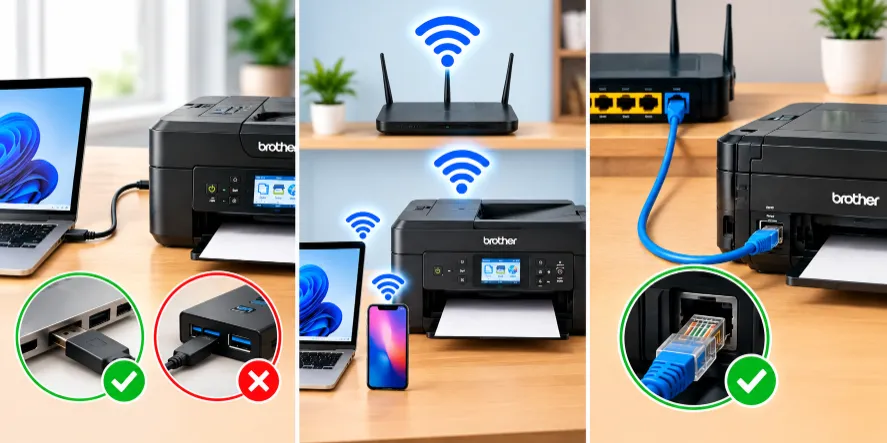
For USB printers, check both ends of the USB cable. If possible, connect the printer directly to the computer instead of using a USB hub.
For Wi-Fi printers, make sure the printer is connected to the same home network used by your computer. A network change can make a previously working printer appear offline.
For wired network printers, check the Ethernet cable between the printer and your router or network device.
3. Cancel Stuck Print Jobs
A stuck print job can stop new documents from reaching the printer.
On Windows 11:
- Open Settings.
- Select Bluetooth & devices.
- Select Printers & scanners.
- Choose your Brother printer.
- Open the print queue.
- Cancel the waiting jobs.
- Send a new small test document.
If several old documents were waiting, removing them gives Windows a fresh print queue.
4. Make Sure Windows Is Using the Correct Printer
Sometimes Windows has more than one copy of the same Brother printer. This can happen after reinstalling printer software or changing a USB connection.
Open Settings > Bluetooth & devices > Printers & scanners and look for your Brother printer.
If you see entries such as a printer name followed by “Copy 1,” “Copy 2,” or another duplicate, check which one is active. Select the printer that shows an idle or ready status and use that printer when printing.
5. Check the “Use Printer Offline” Setting
On some Windows versions, a printer may be placed into an offline mode.
Open the Brother printer's print queue and look through the Printer menu. If Use Printer Offline is selected, remove that selection. Also check that Pause Printing is not selected.
The exact menu layout varies between Windows versions, so you may see slightly different wording.
Brother Printer Offline Fix for Wi-Fi Problems
If you need a brother printer offline fix for a wireless printer, start by checking the network rather than reinstalling everything.
First, check whether your computer is connected to the same Wi-Fi network as the printer. If you recently changed your router, Wi-Fi name, or password, the printer may still be trying to use the old network details.
Try these steps:
- Restart your Brother printer.
- Restart your Wi-Fi router.
- Wait for the router to reconnect.
- Check the printer's wireless connection.
- Make sure your computer is using the same Wi-Fi network.
- Try printing again.
If your Brother printer has a network configuration report, printing that report can help you check its network details and IP address.
If the printer was working before but suddenly stopped communicating over Wi-Fi, restarting its wireless connection may also help. The exact menu path depends on the Brother model.
What If Your Brother Printer Still Says Offline?
If the basic checks did not fix Brother printer offline status, look at the printer entry installed on your computer.
A printer driver connected to an old network address can make the printer appear offline even when the machine itself is working.
Try removing old duplicate printer entries and selecting the active Brother printer.
You may also need to install the correct printer software for your exact Brother model. Avoid installing software meant for a different model just because the printer names look similar.
After installing the correct software, restart the computer and printer before trying another test page.
Try a Simple Test Print
Once the printer shows as ready, don't immediately print a large document.
Instead, print one simple page. This tells you whether the connection is working without creating a large queue of failed jobs.
If the test page prints correctly, your original document may have a formatting or application-specific issue. If the test page does not print, continue checking the printer connection and Windows printer settings.
Brother Printer Prints Blank or With Missing Lines
An offline printer and a clogged print head are two different problems.
If the printer connects normally but produces blank areas, missing colors, streaks, or broken lines, the print head or nozzles may need cleaning.
For regular Brother inkjet models, Brother advises using the printer's built-in print-head cleaning options when print quality drops. Cleaning uses ink, so repeated cleaning should not be done without a reason.
Start with a print-quality or nozzle check when your model provides one. Look for missing sections in the printed pattern.
If only a small section is missing, a normal cleaning cycle may be enough. If the problem continues, your printer's manual may provide a stronger cleaning option.
Do not touch the print head directly unless the instructions for your exact model specifically tell you to do so.
How to Fix Clogged Print Head Brother GTX
The question how to fix clogged print head Brother GTX needs a separate answer because Brother GTX printers use a different print system from typical home Brother inkjet printers.
A GTX machine can show missing nozzles, missing colors, poor firing, or blank areas when the print head or ink system has a problem.
The first step is a nozzle check.
1. Print a GTX Nozzle Check
A nozzle check helps you see which nozzles are firing correctly.
Brother's GTX instructions include separate CMYK and white nozzle checks. The printed pattern shows whether individual nozzles are missing.
If the pattern shows missing nozzles, continue with the cleaning process rather than guessing where the problem is.
2. Run Normal Head Cleaning
For a small number of missing nozzles, start with normal head cleaning.
Brother's GTX instructions state that normal cleaning can be done one or two times, with another nozzle check between cleaning cycles.
This gives you a clear way to see whether the cleaning improved the nozzle pattern.
3. Try Powerful Cleaning When Needed
If normal cleaning does not correct the missing nozzles, GTX instructions include a powerful cleaning option.
Run the cleaning according to the printer's instructions, then print another nozzle check.
Avoid repeatedly running powerful cleaning without checking the result. Print-head cleaning uses ink, and repeated cleaning can consume a significant amount of ink.
4. Check the Print-Head Surface
If normal and powerful cleaning do not resolve the problem, the print-head surface may need cleaning.
Brother's GTX procedure uses specific cleaning equipment and wash solution. The procedure also includes a maintenance menu and instructions for safely positioning the machine before cleaning.
This is not the same as wiping a regular home printer's print head with a household cloth.
Follow the GTX procedure for your exact machine and use the specified cleaning materials.
5. Check for Waste Ink Tube Problems
A GTX printer can also have problems caused by clogged waste ink tubes.
Waste ink flow problems can affect the maintenance station and may eventually affect print-head performance.
If you are comfortable working with GTX maintenance parts, inspect the waste ink tubes for solid debris, bends, or restricted flow according to Brother's procedure.
If you are not familiar with these parts, avoid taking apart the printer just to experiment. A wrong move around the ink system or maintenance station can create a much larger problem.
When Print-Head Cleaning Does Not Work
If a GTX printer continues to show many missing nozzles after several cleaning cycles, the issue may not be a simple surface clog.
Possible causes include:
- Air in the ink system
- Blocked waste ink tubes
- A dirty maintenance station
- Problems around the suction caps
- Ink supply issues
- Missing or poorly firing nozzles
- Other maintenance-unit problems
At this point, repeated cleaning may not solve the actual cause.
Use the maintenance and troubleshooting instructions for your exact GTX model before attempting deeper cleaning.
Quick Printer Offline Fix Brother Checklist
If you searched for printer offline fix brother, use this short checklist before making major changes:
- Turn on the Brother printer.
- Clear any printer error shown on its screen.
- Check the USB, Ethernet, or Wi-Fi connection.
- Make sure the printer and computer use the same network when using Wi-Fi.
- Cancel stuck print jobs.
- Check that Windows is using the correct Brother printer.
- Remove duplicate printer entries if needed.
- Restart the printer and computer.
- Check the printer's network information if using Wi-Fi.
- Print a small test page.
For print-quality problems, run a nozzle or print-quality check instead of treating the issue as an offline connection problem.
How to Prevent Brother Printer Problems
A little regular care can reduce many printing problems.
Keep the printer in a clean, dry area. Avoid switching the machine off by pulling its power cable while it is working.
For wireless models, keep the printer within a reasonable range of your router. If you change your Wi-Fi name or password, reconnect the printer afterward.
For GTX machines, follow the manufacturer's maintenance schedule and complete the required nozzle checks and cleaning tasks. These machines have specific maintenance procedures, so use the instructions for your exact GTX model.
Final Thoughts
When your Brother printer stops printing, start with the simple causes before making major changes. Check power, connection, printer selection, and stuck print jobs first. These steps solve many offline problems.
If the printer connects but the pages show missing colors or broken lines, check print quality and nozzle patterns instead. For Brother GTX machines, use the dedicated cleaning and maintenance procedure because their print system requires different care.
Whether you need to fix Brother printer offline status or deal with a clogged GTX print head, working through the problem in a logical order makes it easier to find the actual cause.