
HP printer not connecting to WiFi can be very annoying.
Maybe the HP Smart App can't find the printer. Maybe it suddenly went offline even though nothing changed. Or maybe you switched routers and now the printer refuses to reconnect.
The thing is, most troubleshooting guides keep repeating the same basic advice. Restart the printer. Restart the router. Try again.
Sometimes that works. But when it doesn't, that's where most people get stuck.
So this guide skips the fluff and walks through the fixes that actually solve the problem, including a factory reset method that many users have found helpful when nothing else works.
1. Quick Checks Before The Solution
Before performing resets and setup modes, check the obvious stuff. I know. You've probably done some of these already.
Still, these are responsible for a surprising number of HP printer WiFi issues.
Restart Everything
Power off:
-
Your HP printer
-
Your router
-
Your computer or phone’
Wait about 30 seconds. Turn the router on first, let it fully reconnect, then power up the printer.
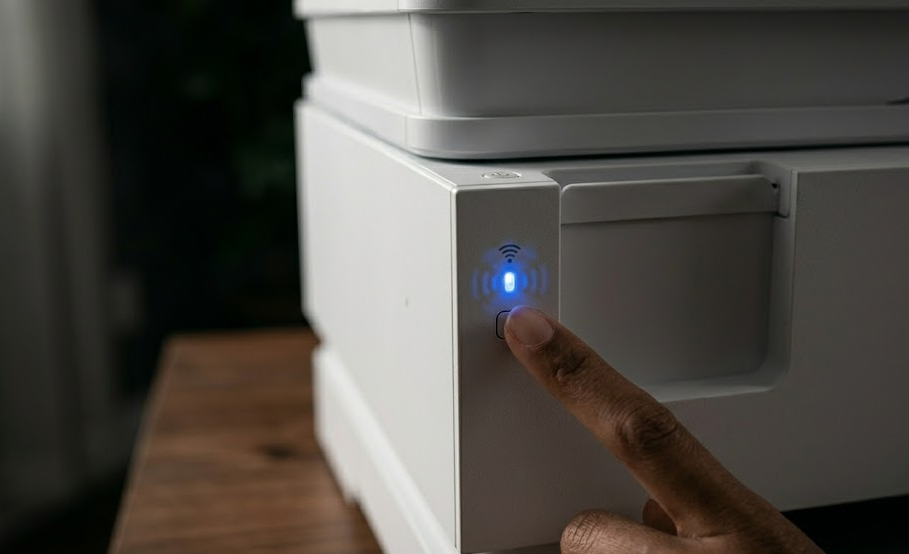
Check the Wi-Fi Light
The wireless light tells you a lot.
-
Solid blue light: Printer is connected to WiFi.
-
Blinking blue light: Printer is in setup mode.
-
No light: Printer is disconnected from the network.
That single light often tells you exactly where the problem is.
Remove USB Cables
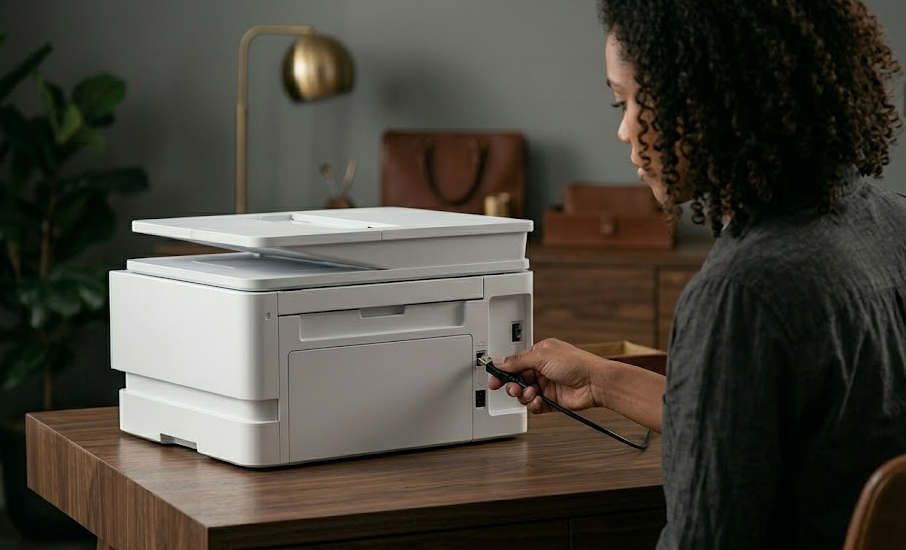
This catches people off guard. Many HP printers disable wireless setup when a USB cable is connected.
If there's a USB cable plugged in, disconnect it before attempting HP printer WiFi setup.
Move Closer to the Router
HP recommends staying within roughly 26 feet (8 meters) of the router during setup. Not permanently. Just during the connection process.
Walls, appliances, and even furniture can weaken the signal enough to cause setup failures.
2. How to Restore Wi-Fi Setup Mode
In most cases, when an HP printer won't connect to a wireless network, it has simply dropped out of setup mode. The printer becomes invisible.
The HP Smart App searches for it. Your computer searches for it. Nothing shows up.
So the goal is to force the printer back into discovery mode.
For Touchscreen HP Printers
Open:
Setup > Network Setup > Restore Network Settings
or
Settings > Network > Restore Network Defaults
Select Yes when prompted.
The printer will restart its wireless settings and return to WiFi setup mode. After that, open HP Smart and run the setup again.
For HP Printers Without a Screen
Button combinations vary slightly by model.
But this method works on many popular HP DeskJet and HP ENVY printers.
-
Press the Cancel button once to wake the printer.
-
Press and hold the Wireless and Cancel buttons together.
-
Hold for 3–5 seconds.
-
Release when the Power light starts blinking.
You should see the wireless light begin flashing.
That's what you want. A blinking wireless light means the printer is ready to be discovered again. At this point, open HP Smart and try reconnecting the printer.
Honestly, this solves a large percentage of HP printer not connecting to WiFi problems.
3. Hard Factory Reset Option
If you've tried everything above to fix the HP printer offline issue and the printer still won't connect, there's one more step. Think of this as wiping the wireless memory and starting completely fresh.
But before you do it, there's something important you need to know.
Important Warning for HP Instant Ink Users
If your printer is enrolled in HP Instant Ink, performing a factory reset can disconnect the printer from the subscription service.
In some situations, this may prevent currently installed Instant Ink cartridges from working until the subscription is reactivated.
If you use Instant Ink, review your account status before proceeding. Now for the reset itself.
Hard Reset Steps
-
Open the cartridge access door.
-
Press and hold the Power button and Wireless button together.
-
Hold both buttons for approximately three seconds.
-
Release and allow the printer to restart.
Once the printer powers back up, restore WiFi setup mode and reconnect using HP Smart.
This isn't the first thing I'd try.
But when an HP printer is stuck offline or refuses to connect after multiple setup attempts, this can clear hidden network configuration issues that standard troubleshooting misses.
4. Network Settings That Block HP Printers
Now here's where things get interesting. Sometimes the printer isn't actually the problem. The network is.
The 2.4 GHz vs. 5 GHz Problem
A lot of HP wireless printers only handle 2.4 GHz WiFi.
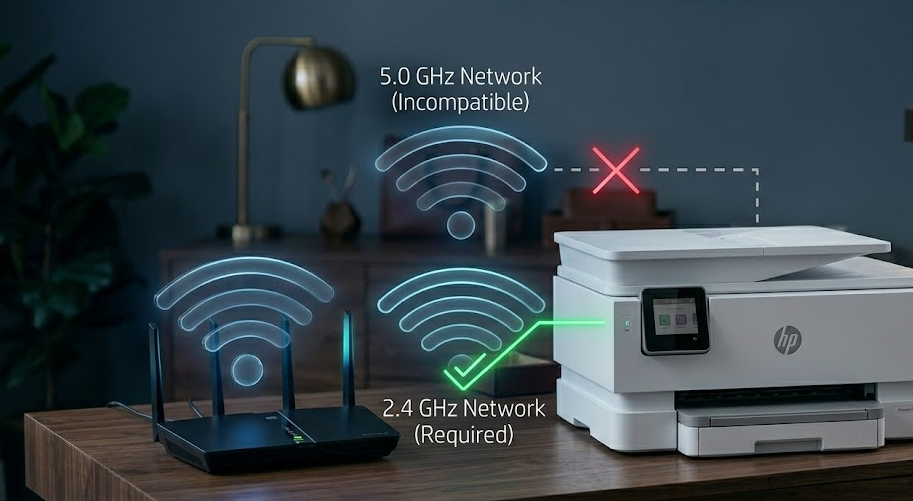
Modern routers often broadcast both:
-
2.4 GHz
-
5 GHz
Sometimes under the exact same network name. And that's where confusion starts.
If your phone is connected to 5 GHz while the printer only handles 2.4 GHz, setup may fail.
Before running HP Smart:
-
Connect your phone or computer to the 2.4 GHz network.
-
Open HP Smart.
-
Run setup again.
This is one of the most common causes of an HP printer not connecting to a new WiFi network.
Guest Networks
Guest networks often block devices from talking to one another.
Your phone can see the internet. Your printer can see the internet. But they can't see each other. If you're using a guest network, switch both devices to the main WiFi network.
Captive Portal Networks
HP printer will not connect to WiFi networks that require a browser login page.
Examples include:
-
Hotels
-
Dormitories
-
Airports
-
Public WiFi hotspots
If a network requires opening a webpage before connecting, the printer likely won't be able to join it.
5. Reinstalling the HP Smart App
Here's a simple way to tell where the problem is. If the printer has a solid blue WiFi light, it's already connected. At that point, the issue usually isn't the printer. It's the software.
Remove and Reinstall
On your computer:
-
Remove the printer from Printer Settings.
-
Uninstall HP Smart.
-
Restart the computer.
-
Download the latest software from 123.hp.com.
-
Reinstall the printer.
This often fixes situations where the HP Smart App says the printer is offline even though the printer is connected to WiFi.
A fresh installation clears old network profiles and corrupted printer settings.
Final Thoughts
When an HP printer isn't connecting to WiFi, the solution is usually simpler than it looks.
Start with setup mode. Check whether you're on a 2.4 GHz network. Remove any USB cable. Then move toward resets only if necessary.
Most people don't need a factory reset. But when they do, it's often the step that finally gets everything working again.
And honestly, once the printer reconnects, you'll wonder why HP makes this process feel harder than it needs to be.