
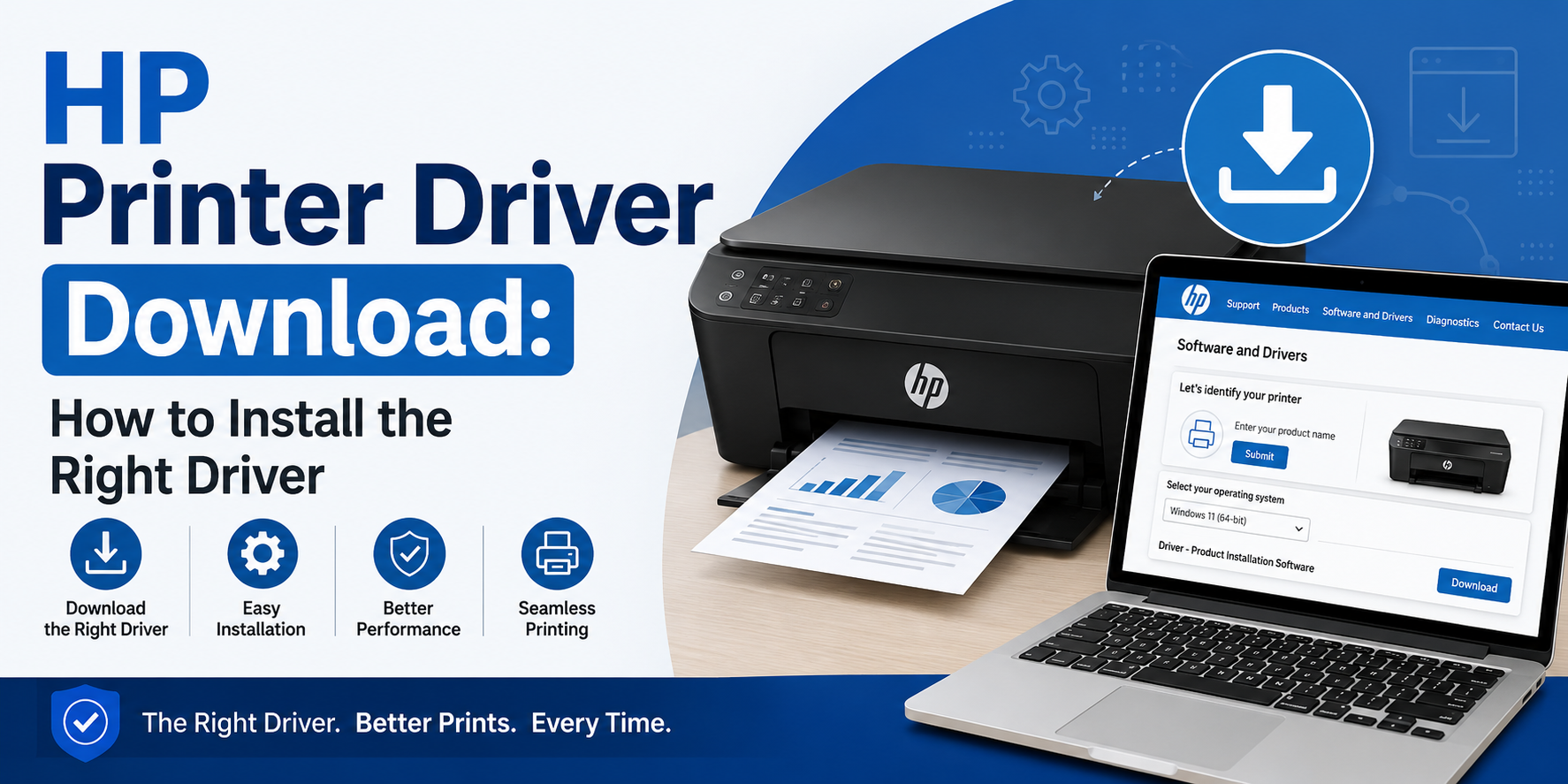
If your HP printer suddenly stops printing, there’s a good chance the driver is the problem.
Not the printer itself.
Not the cable.
Usually the driver.
And honestly, this is where most people get stuck because “HP printer driver download” sounds simple until you actually search for it. Then you end up with ten different versions, random websites, setup tools, and error messages that somehow make everything feel more confusing than it should.
The thing is, downloading the right driver really only comes down to a few things:
your printer model
your operating system
and whether you’re installing from scratch or fixing an issue
That’s it. But let’s go through it properly because small mistakes here waste a ridiculous amount of time.
What is HP Printer Driver Download?
HP Printer Driver Download is what lets your computer and printer talk to each other.
Without it, your laptop sees the printer as almost nothing useful.
You might still detect the device. Sometimes it even shows up in settings. But printing? Scanning? Ink status? Those features often break without the proper driver installed.
Think of the driver as the translator between both devices.
And yes, Windows sometimes installs a “basic” driver automatically. Sometimes it works fine. Sometimes it barely works at all. Especially with wireless printers or all-in-one models.
First thing you need: your exact HP printer model
This matters more than people realize.
“HP DeskJet” alone isn’t enough. There are dozens of them.
You want the full model name, something like:
-
HP DeskJet 2723e
-
HP LaserJet Pro MFP M126nw
-
HP OfficeJet Pro 9015e
Usually you’ll find it on:
-
the front of the printer
-
a sticker near the ink cartridges
-
the back label
-
or inside printer settings
And before downloading anything, double-check the spelling. One wrong number changes the entire driver.
Yeah. Annoying, but true.
Where should you download the HP printer driver from?
Always complete HP Printer Driver Download from the official HP site. Not random “driver update” websites.
A lot of third-party download pages push outdated files, unnecessary software, or weird installer tools nobody asked for. Some are harmless. Some aren’t.
The safer option is HP website - support.hp.com.
Once you’re there:
-
Search your printer model
-
Select your operating system
-
Download the recommended driver package
That’s usually enough.
Windows users: this is where problems usually happen
A lot of HP driver issues happen after:
-
Windows updates
-
switching Wi-Fi routers
-
reinstalling Windows
-
changing USB ports
-
upgrading from Windows 10 to 11
And weirdly enough, printers sometimes appear “online” while still refusing to print anything.
If that happens:
-
remove the printer completely
-
uninstall the old driver
-
restart the computer
-
reinstall the latest driver fresh
Simple advice, I know. But it fixes more problems than people expect.
What about Mac users?
MacBooks usually detect HP printers automatically now.
But not always correctly.
AirPrint works for basic printing, which is nice, but if scanning or advanced settings don’t work properly, installing the official HP package still helps.
Especially with older printers.
And here’s the thing people miss: macOS updates sometimes break older printer compatibility quietly in the background. You don’t notice until one day the printer just stops responding.
Should you use HP Smart?
Probably yes. HP Smart is actually useful in most cases. Which surprised me too, honestly.
It helps with:
-
wireless setup
-
scanning
-
mobile printing
-
troubleshooting
-
checking printer status
For newer HP printers, setup is often easier through HP Smart than manual HP Printer Driver Download installation.
You can find it through HP Smart App - https://www.hpsmart.com
Do you actually need to update your HP printer driver regularly?
Not really. If everything works properly, you can mostly leave it alone.
Updating makes sense when:
-
the printer stops responding
-
features stop working
-
your operating system changes
-
HP releases a fix for compatibility issues
Otherwise? No need to keep chasing every update.