
If your Brother HL-L2350DW won't print after you connect it to a new computer, the driver is one of the first things to check. The same applies if Windows or macOS doesn't find the printer, the printer appears but won't print, or an old installation has stopped working.
The HL-L2350DW is a monochrome laser printer designed for black-and-white printing. For a normal setup, you need the right printer software for your computer and the right connection between the computer and printer.
Brother's current U.S. download page lets you choose the operating system and version before showing the available files. The page currently lists Windows and Mac options, along with printer drivers, full software packages, and other utilities.
Brother HL-L2350DW Driver: What You Actually Need
A printer driver is a small piece of software that lets Windows or macOS communicate with the printer.
Think of it as the translator between your computer and the printer. When you click Print, your computer has to tell the printer things such as which pages to print, which paper setting to use, and how the print job should be handled.
Without suitable printer software, the computer may not know how to communicate with the HL-L2350DW correctly.
Why the correct driver matters
The printer model alone isn't enough when you download a driver. Your computer's operating system also matters.
Windows 11, Windows 10, and different Mac versions may use different software packages. Brother's download page asks you to choose your operating system and version before showing the available downloads.
That's worth doing even if another website claims to have a "universal" Brother driver.
Driver vs. firmware
These two terms are easy to mix up.
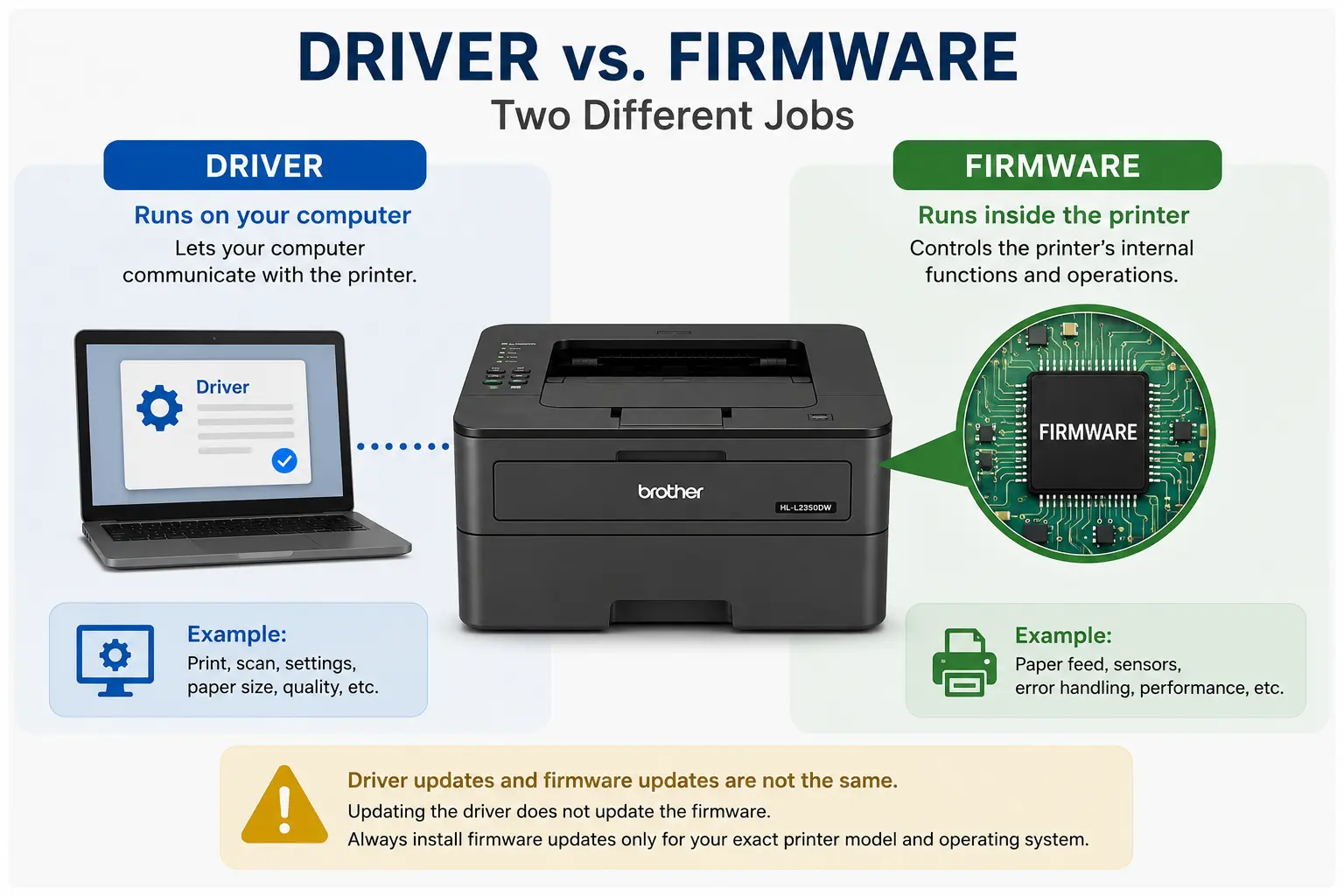
A driver runs on your computer and lets the computer communicate with the printer.
Firmware runs inside the printer itself. It controls parts of the printer's internal operation.
Updating a printer driver doesn't mean you've updated the printer's firmware. They are separate pieces of software and have different jobs.
Brother also provides firmware-related software and updates for this printer family, but you should only install them when they apply to your exact model and operating system.
Don't use random driver websites
You may find websites offering a "free HL-L2350DW driver" after a quick search. Be careful with those downloads.
A driver from an unknown site could be outdated, modified, or simply the wrong file for your computer.
For this printer, the safer route is to start with Brother's official download page, select HL-L2350DW, choose your operating system, and then select the appropriate software. Brother currently lists both a printer-only driver and a full driver and software package for Windows.
Before Installing the Brother HL-L2350DW Driver
A few checks can save you from reinstalling the same software several times.
Before you begin, check the following:
- Check your operating system: Find out which Windows or macOS version your computer uses.
- Check the printer: Make sure the HL-L2350DW is switched on and ready.
- Check USB setup: If you're using a USB cable, connect it firmly to the printer and computer.
- Check Wi-Fi setup: If you're using wireless printing, make sure the computer and printer are connected to the same network.
- Check old printer entries: If you've tried installing the printer several times, you may have duplicate entries.
- Restart the printer: This is useful if the printer was previously connected to another Wi-Fi network.
- Keep your Wi-Fi password nearby: You'll need it if the printer has to be connected to a new wireless network.
One small tip can save a lot of time: don't install several different Brother driver packages at the same time. If one installation failed, remove the failed printer entry first and then start again with one package.
How to Download the Brother HL-L2350DW Driver
The safest way to get the current software is through Brother's official download page for the HL-L2350DW.
Brother's U.S. page currently shows a selection for operating system family and version. It lists Windows, Mac, Linux, and mobile options.
Follow these steps:
- Open Brother's official download page: Search for the Brother HL-L2350DW on Brother's website and open the downloads page for this exact model.
- Select your operating system: Choose Windows or Mac, then select the version shown on your computer.
- Review the available downloads: Brother may show a printer driver, a full driver and software package, and other utilities depending on your operating system.
- Choose the right package: If you're setting up the printer from scratch, the full driver and software package may be useful. If you only need the printer driver, Brother also lists a printer-only download for Windows.
- Download the file: Save it somewhere easy to find, such as your Downloads folder.
- Run the installer: Open the downloaded file and follow the instructions shown on screen.
Brother's download page is updated over time. For that reason, it's better to select your operating system each time rather than rely on an old driver file saved on your computer.
Brother HL-L2350DW Driver Windows: Installation Guide
If you're looking for the brother hl-l2350dw driver windows, the process is fairly straightforward.
The exact screens can differ based on your Windows version and the Brother package you download, so don't worry if your screen looks a little different from another computer.
Follow these steps:
- Download the Windows package: Go to Brother's HL-L2350DW downloads page, select your Windows version, and download the suitable printer driver or full driver and software package.
- Open the downloaded file: Go to your Downloads folder and double-click the installer.
- Allow the installer to run: Windows may ask whether you want to allow the program to make changes. Check that the publisher is Brother before continuing.
- Read the license terms: Review the terms shown by the installer and accept them if you want to continue.
- Choose your connection method: The installer may ask whether you want to connect through USB or a network.
- For USB setup: Connect the USB cable when the installer asks you to. Avoid plugging the printer into a USB hub during setup if possible.
- For wireless setup: Make sure the HL-L2350DW is connected to the same Wi-Fi network that your computer uses. Follow the wireless instructions shown by the installer.
- Let Windows finish the installation: Don't close the installer while it is adding the printer and its software.
- Check the printer list: Open Settings → Bluetooth & devices → Printers & scanners and look for the Brother HL-L2350DW.
- Print a test page: Send a small test document to the printer. A successful test tells you that the computer can communicate with the printer.
What if Windows doesn't detect the printer?
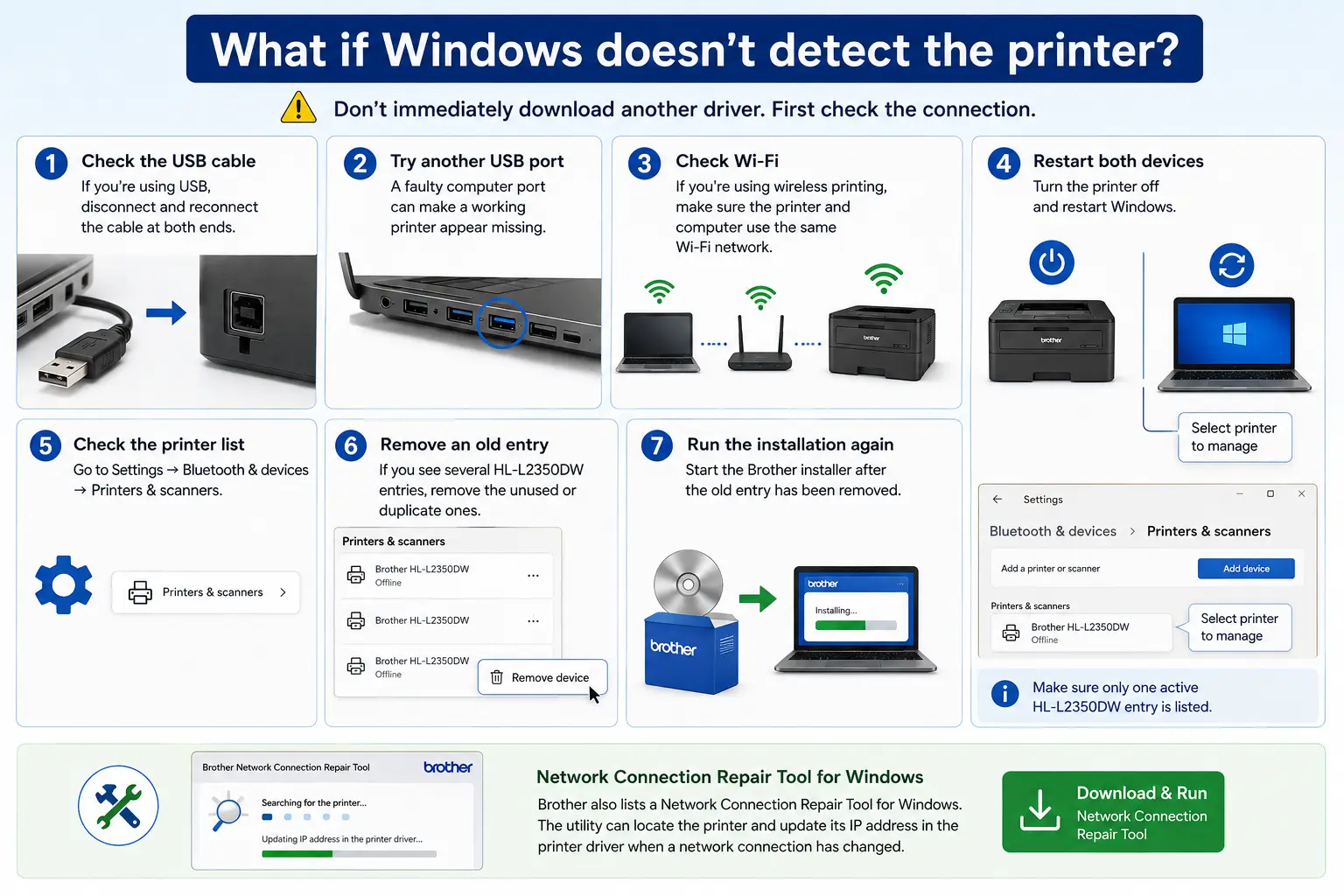
Don't immediately download another driver.
First check the connection.
- Check the USB cable: If you're using USB, disconnect and reconnect the cable at both ends.
- Try another USB port: A faulty computer port can make a working printer appear missing.
- Check Wi-Fi: If you're using wireless printing, make sure the printer and computer use the same Wi-Fi network.
- Restart both devices: Turn the printer off and restart Windows.
- Check the printer list: Go to Settings → Bluetooth & devices → Printers & scanners.
- Remove an old entry: If you see several HL-L2350DW entries, remove the unused or duplicate ones.
- Run the installation again: Start the Brother installer after the old entry has been removed.
Brother also lists a Network Connection Repair Tool for Windows. The utility can locate the printer and update its IP address in the printer driver when a network connection has changed.
Brother HL-L2350DW Driver for Mac
If you're searching for the brother hl-l2350dw driver for mac, start by checking the macOS version on your Mac.
Don't assume that a driver package made for one Mac version will work the same way on every other version. Brother's download page lets you choose the Mac operating system before displaying available files.
Follow these steps:
- Check your macOS version: Open the Apple menu and choose About This Mac. Write down the macOS version shown there.
- Open Brother's HL-L2350DW download page: Select Mac and then choose the version that matches your computer.
- Download the appropriate software: Use the package listed for your Mac version.
- Open the downloaded package: It will usually be in your Downloads folder.
- Run the installer: Follow the instructions shown on screen.
- Choose the connection method: If the installer asks how the printer is connected, select USB or wireless as appropriate.
- Add the printer if needed: Open System Settings → Printers & Scanners on newer macOS versions.
- Select the Brother printer: Choose the HL-L2350DW if it appears in the printer list.
- Complete the setup: Follow any remaining prompts and wait for macOS to finish adding the printer.
- Print a test page: Send a short document to make sure the setup is working.
The exact Mac setup screens can change between macOS versions. If the printer isn't listed, don't keep reinstalling the same package. Check the connection first.
If your Mac doesn't see the printer
Try these checks:
- Check the USB cable: Disconnect and reconnect it if you're using USB.
- Check Wi-Fi: Make sure your Mac and printer are on the same network.
- Restart the printer: Give the printer a fresh connection before trying again.
- Open Printers & Scanners: Check whether an old HL-L2350DW entry is already listed.
- Remove the old entry: If the old printer entry is broken, remove it.
- Add the printer again: Use the add-printer option in macOS.
- Try the Brother package again: If macOS still doesn't find the printer, return to Brother's download page and verify that you selected the correct macOS version.
How to Add Brother HL-L2350DW to Windows After Driver Installation
Sometimes the driver installs correctly but Windows doesn't add the printer in the way you expect.
Open:
Settings → Bluetooth & devices → Printers & scanners
Then check the list.
- Look for HL-L2350DW: If it appears, select it to see its printer settings.
- Check the printer status: If Windows shows the printer as ready, try printing a test page.
- Set it as the default printer if needed: This makes Windows use the Brother printer automatically when an app doesn't specify another printer.
- Print a test page: A test page is a quick way to check the connection.
- Add it manually if missing: Select the option to add a printer and allow Windows to search for available printers.
If Windows shows two or three HL-L2350DW entries, don't keep all of them. Duplicate entries can make it unclear which printer Windows is actually using.
How to Add Brother HL-L2350DW on Mac
On a Mac, open:
Apple menu → System Settings → Printers & Scanners
Then:
- Check the existing printer list: Look for Brother HL-L2350DW.
- Remove an old broken entry if needed: An old entry may point to a printer that no longer exists.
- Select Add Printer: Let macOS search for nearby or network printers.
- Choose the HL-L2350DW: Select the printer when it appears.
- Check the software selection: macOS may display an available printer software option.
- Add the printer: Complete the setup and wait for it to appear in your printer list.
- Print a test page: Use a short document to check that the printer responds.
If the printer doesn't appear, check the Wi-Fi connection before downloading another driver.
Brother HL-L2350DW Driver Not Working? Try These Fixes
A driver isn't always the cause when a printer stops printing. Connection problems are very common, particularly after a router change or when moving the printer to a new computer.
Printer not detected
The computer may not see the printer because the USB connection is loose, the printer is on another Wi-Fi network, or an old printer entry is causing confusion.
Try this order:
- Check the connection: Confirm USB or Wi-Fi is working.
- Restart the printer: Give it a fresh connection.
- Restart the computer: This can clear a temporary printer detection problem.
- Remove duplicate entries: Keep only the printer entry you actually use.
- Add the printer again: Use Windows or macOS printer settings.
Printer shows offline
A Brother printer offline often points to a network problem rather than a bad driver.
Try this order:
- Check Wi-Fi: Make sure the printer is connected.
- Check the computer: Make sure it uses the same network.
- Restart the router: This can restore a lost network connection.
- Restart the printer: Wait for it to reconnect.
- Check the printer's IP address: A network printer uses an IP address to communicate with your computer.
- Run Brother's network utility on Windows if needed: Brother lists a Network Connection Repair Tool that can update the printer's IP address in the installed driver.
Driver installation fails
A failed installation can happen because an old printer entry or previous software is interfering with the new installation.
Try this order:
- Cancel the failed installation: Don't start another installer immediately.
- Restart the computer: This can clear a process left behind by the failed setup.
- Remove the old printer: Delete old HL-L2350DW entries from your printer settings.
- Remove old Brother software if needed: Use Windows' installed-app settings or Brother's own uninstall utility where applicable.
- Restart again: Give Windows a clean start.
- Run one Brother installer: Use the package meant for your operating system.
Brother currently lists an Uninstall Tool for Windows that can help when reinstalling the printer driver.
Printer is installed but not printing
This situation can be confusing because the printer appears in Windows or macOS, yet nothing comes out.
Check these items:
- Check the selected printer: Make sure the print window is sending the document to the HL-L2350DW.
- Check the print queue: A stuck document may be blocking newer jobs.
- Clear old jobs: Remove documents that have been waiting too long.
- Restart the printer: Turn it off and back on.
- Restart the computer: This can clear a stuck printer process.
- Print a small test page: This helps tell you whether the problem is with one document or the printer itself.
Restarting the printer alone may not clear a stuck print queue. Sometimes the queue on the computer also needs to be cleared.
Wi-Fi stopped working after moving the printer
If the printer was previously used at another home or office, it may still be looking for the old Wi-Fi network.
Before reinstalling the driver, reconnect the printer to the new network.
This is a common case where people spend time reinstalling software when the actual problem is the wireless connection.
Printer appears twice
If Windows or macOS shows two HL-L2350DW entries, one may be an old USB entry and another may be a network entry.
Remove the entry you no longer use and keep the active one.
Having several entries isn't always harmful, but it can make print jobs go to the wrong printer port.
How to Reinstall the Brother HL-L2350DW Driver
Reinstalling makes sense when the existing installation is damaged or when the printer was removed and added several times.
It isn't necessary every time the printer stops printing.
Try this process:
- Remove the printer: Open your Windows or Mac printer settings and remove the HL-L2350DW.
- Remove duplicate entries: If several copies appear, remove the unused ones.
- Remove old Brother software if needed: On Windows, Brother provides an Uninstall Tool for this printer family.
- Restart the computer: This gives the old installation a clean exit.
- Restart the printer: Make sure it is ready before beginning again.
- Download the current package: Return to Brother's official HL-L2350DW download page and choose your operating system again.
- Run the installer: Follow the instructions and choose USB or network setup.
- Add the printer: Let Windows or macOS complete the printer setup.
- Print a test page: Make sure the printer works before sending an important document.
If the printer still isn't found after a fresh installation, stop reinstalling the driver repeatedly. Check the USB cable, Wi-Fi network, printer IP address, and printer status instead.
Do You Need a Driver If Windows or Mac Automatically Detects the Printer?
Not always in the same way.
Modern operating systems can sometimes detect a printer and install compatible printer software automatically. That can be enough for basic printing in some setups.
However, automatic detection doesn't mean every Brother feature or setting will be available.
If you're setting up the HL-L2350DW for the first time, using Brother's current software for your operating system can give you a more complete setup. Brother's Windows download page, for example, lists both a printer-only driver and a full driver and software package.
The important thing is to check what your computer already installed before adding another package.
Installing several driver packages over the top of one another can create duplicate printer entries and make troubleshooting harder.
Final Thoughts
Installing the correct Brother HL-L2350DW driver is usually a simple process when you start with the right operating system and connection type.
For Windows, download the correct Brother package, install it, add the printer, and print a test page. For Mac, check the macOS version first, install the matching software, and add the HL-L2350DW through Printers & Scanners when needed.
If the printer still isn't detected after a fresh installation, don't keep installing drivers over and over. The next thing to check is the connection.
Look at the USB cable if you're using USB. If you're using Wi-Fi, check the wireless network and the printer's IP address. If the printer was moved to a new router or computer, reconnect it before assuming the driver is at fault.
A little checking at this stage can save a lot of unnecessary reinstalling.