
I’ve set up the Brother HL-L2350DW for a lot of folks, and the Wi-Fi part is where most people get stuck. It isn’t hard, though. You just need to know where the menu is and have your Wi-Fi password in front of you. Take it slow and you’ll be done in about ten minutes.
Before You Start: Get These 3 Things Ready
Most failed setups come from skipping this part, so don’t.
- Your Wi-Fi name and password. Both are usually printed on a sticker on the side or bottom of your router, the box from your internet company. The password is case-sensitive, so capital letters matter. A capital “O” and a zero are different things.
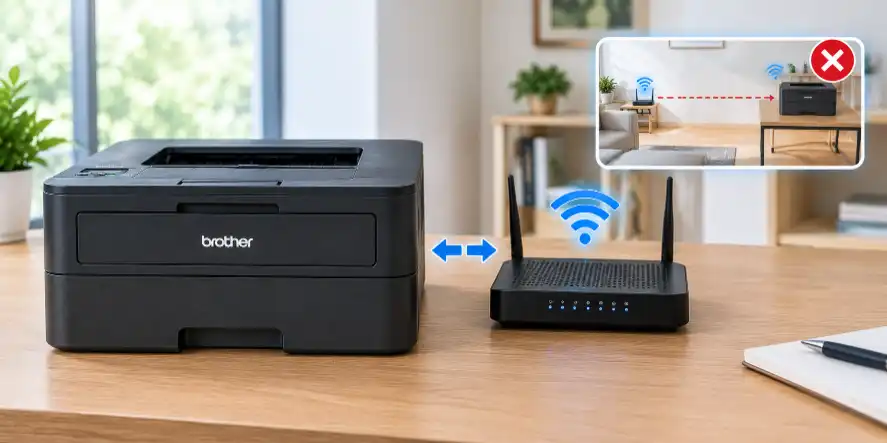
- The printer close to your router. Just for setup, put it in the same room. You can move it later.
- Your router on the 2.4 GHz band. The HL-L2350DW only connects to 2.4 GHz Wi-Fi, not 5 GHz. If your router shows two names, like “HomeWiFi” and “HomeWiFi-5G”, pick the one without the 5G.
Also make sure the printer is plugged in, turned on, and has toner and paper loaded. The little screen should be lit up.
Connecting the Brother HL-L2350DW Printer to Wi-Fi From the Printer Screen
This is the method I use almost every time. You don’t need a computer for it. The small two-line screen takes a little patience, but it works.
- Press the up or down arrow on the printer until you see Network, then press OK.
- Choose WLAN (some printers label it Wi-Fi), then press OK.
- Select Find Network, then press OK. If it asks “WLAN Enable?”, pick On.
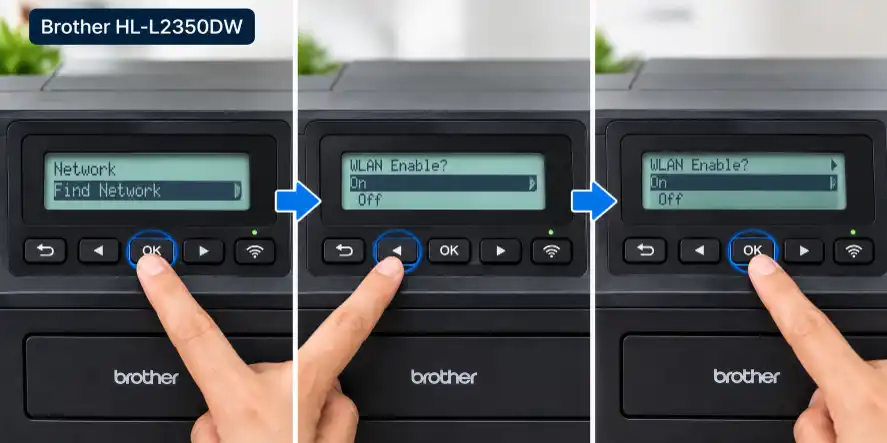
- Wait a few seconds while the printer searches. You’ll see a list of Wi-Fi names near you.
- Use the arrows to find your network name, then press OK.
- Now type your password. Use the up and down arrows to scroll through letters, numbers, and symbols. When you land on the right character, press OK to lock it in, then move on to the next one. It’s slow, I know. Holding an arrow down makes it scroll faster.
- When you’ve typed the whole password, choose Apply, then press OK.
- Wait. The screen will say Connecting, and after a moment it should say Connected.
A small tip: write your password on a sticky note first, character by character, and keep it next to the printer. That way you aren’t squinting back and forth between the router and the screen.
Once it’s connected, you’ll see a Wi-Fi light on the printer’s panel. That’s your sign it worked.
Adding the Brother HL-L2350DW Printer to Your Computer or Phone
Being connected to Wi-Fi isn’t the last step. Your computer still needs to know the printer is there.
On a Windows computer or Mac: Go to setup.brother.com in your web browser, type in your model number (HL-L2350DW), and download the driver package. Run it and follow the prompts. When it asks how the printer is connected, pick the wireless option and it should find the printer on its own.
On an iPhone or Android: Download the free Brother Mobile Connect app from your app store. Open it, and it will look for your printer. Make sure your phone is on the same Wi-Fi network as the printer, or it won’t find it.
Print a test page when you’re done. If it comes out, you’re finished.
If It Won’t Connect
I see the same few problems over and over:
- Wrong password. This is the cause most of the time. Retype it carefully, paying attention to capitals.
- Wrong band. If your router merges 2.4 and 5 GHz under one name, check your router settings or look up how to separate them.
- Printer too far away. Move it closer to the router for setup.
- Router needs a restart. Unplug it for 30 seconds, plug it back in, and give it a couple of minutes to come back up.
If you’re still stuck, print a WLAN Report from the printer’s menu. It gives you an error code you can look up on Brother’s website, and it usually points right at the problem.
If the printer was set up on an old network or keeps acting strange, a factory reset often clears it up. Then you can run through these steps again fresh.
Final Thoughts
Once the Brother HL-L2350DW printer is on Wi-Fi, you can print from anywhere in the house without cables. Setup is the hardest part, and you only do it once, or again if you ever change your router or password. Take your time, double-check the password, and you’ll be fine.