
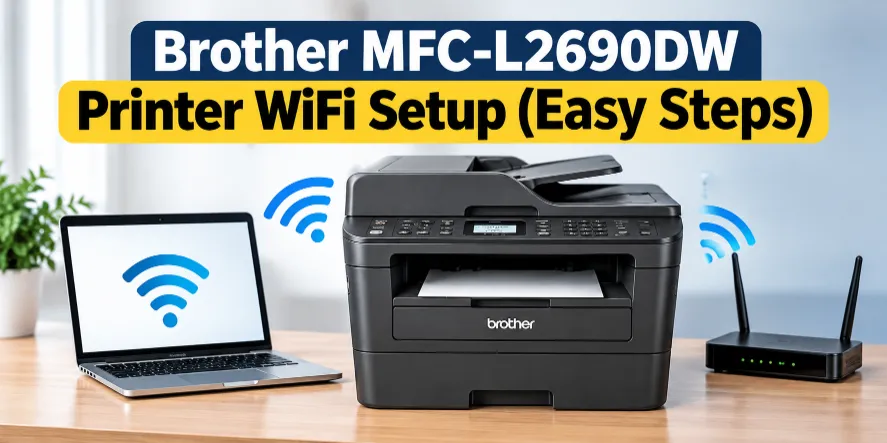
I’ve connected Brother MFC-L2690DW printer to WiFi more times than I can count, and I can tell you the setup is simple once you know where the menu is. The part that trips people up is the password, not the printer. So grab a cup of coffee, and let’s get it done in about ten minutes.
Before You Start: Gather These 3 Things
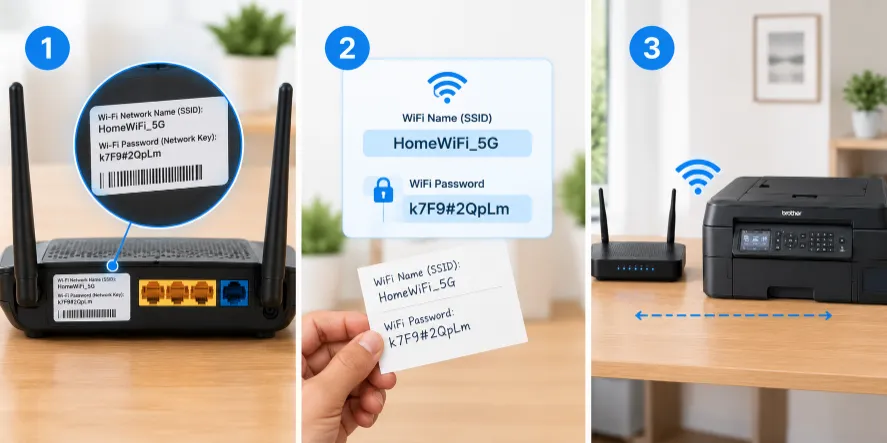
Skip this part and you’ll probably end up frustrated halfway through.
-
Your WiFi name (also called the SSID). Look for the sticker on your router, the box your internet company gave you.
-
Your WiFi password (Brother calls it the Network Key). It’s on that same sticker unless you changed it. Capital letters matter. A capital “I” and a small “l” look nearly the same, so read slowly.
-
The printer set up near your router. Same room is best for now.
Quick tip: Write the password on a sticky note, letter by letter, before you begin. You’ll be typing it on the printer’s number pad, so you don’t want to run back and forth to the router.
Also, this printer connects to the 2.4 GHz WiFi band. If your router shows two names, like “HomeWiFi” and “HomeWiFi-5G,” choose the one without the “5G.”
Step-by-Step: Connect the MFC-L2690DW to WiFi
This is the method that works for most people, and you don’t need a computer for it.
-
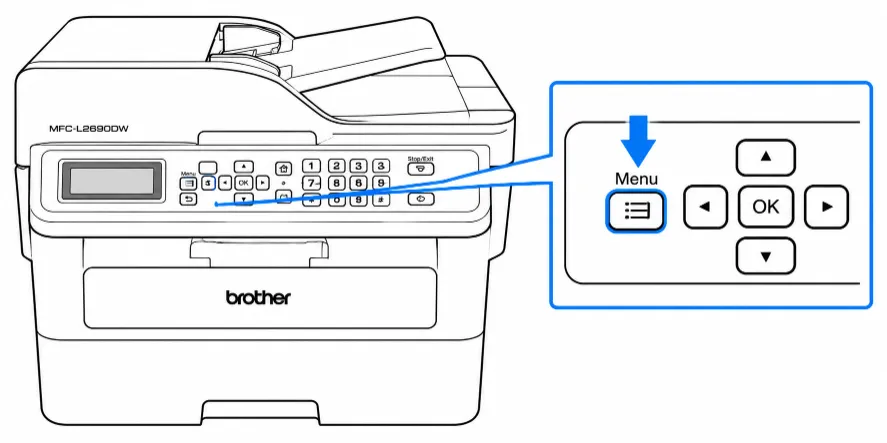
Press Menu on the printer’s control panel.
-
Press the down arrow until you see Network, then press OK.
-
Press the down arrow to WLAN, then press OK.
-
Press the down arrow to Setup Wizard, then press OK.
-
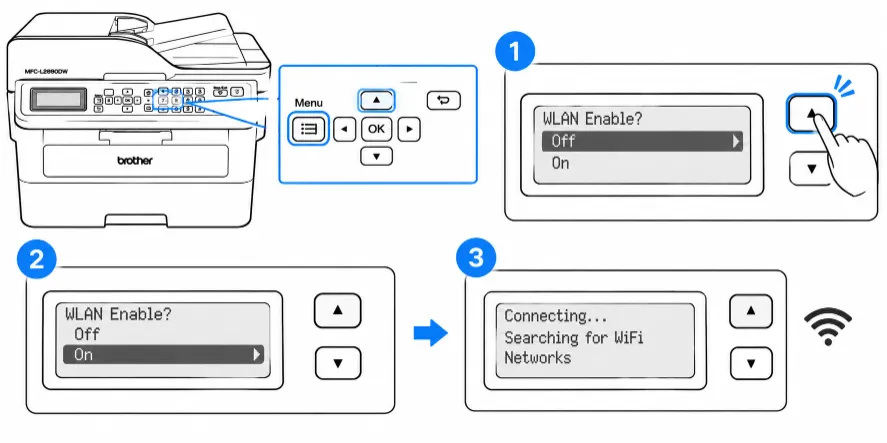
If it asks “WLAN Enable?”, press the up arrow for “On.” The printer will now search for WiFi networks.
-
Use the up and down arrows to find your WiFi name, then press OK.
-
Type your password using the number pad. Pressing a key over and over cycles through its letters, numbers, and symbols, the same way old cell phones worked. Press OK when you’ve finished.
-
If it asks to apply settings, press the up arrow for “Yes.”
-
Wait a few moments. When the screen says Connected, press OK. You’re on WiFi.
Can’t see your network in the list? Some routers hide their name. In that case you’ll need to add the network name by hand, typing it exactly as it appears, including capitals.
Check IP Address If Brother Printer Says Connected But Isn't Working
Most guides stop at “Connected.” I don’t, because I’ve seen printers say “Connected” and still not work.
Wait about a minute, then print the Network Configuration Report from the printer’s Network menu. Look for the IP Address on that page.
-
Good: Something like 192.168.1.7, similar to the numbers on your other devices at home.
-
Bad: All zeros (000.000.000.000), or a number starting with 169.254. That means the printer isn’t properly talking to your router yet.
If you see a bad number, restart your router, wait two minutes, and print the report again.
What Does The Error Messages Mean on MFC-L2690DW
| What the screen says | What it usually means | What to do |
|---|---|---|
| Wrong Network Key | The password doesn’t match | Retype it slowly, checking capitals |
| Connection Fail | The printer couldn’t join | Check your router’s security type (see below) |
Here’s something that surprises people: this printer only works with WPA2-PSK with AES security. If your router uses a different type, such as TKIP, you’ll get “Connection Fail” even with the right password. Your router’s settings page or your internet company can tell you which one you have.
Also, if you set this printer up on an older network before, reset its network settings first and then run the steps above again.
Want To Print From Phone? Try Wi-Fi Direct
If you only want to print from your phone and don’t want to mess with your router, there’s a shortcut.
-
Press Menu on your Brother MFC-L2690DW printer, then go to Network, then Wi-Fi Direct, then Manual.
-
If it asks you to turn it on, press the up arrow.
-
The printer shows a network name and password on its screen. You have about two minutes.
-
On your phone, open your WiFi settings, pick that network name, and enter that password.
Then download the free Brother iPrint&Scan app from the App Store or Google Play so you can print from your phone.
Finishing Up
To print from a computer, you’ll also need the printer software, which you can get from Brother’s website by searching your model number. After that, print a test page and you’re done.
If you’re still stuck after all this, a factory reset of the printer followed by a fresh start of the steps above fixes most stubborn cases.