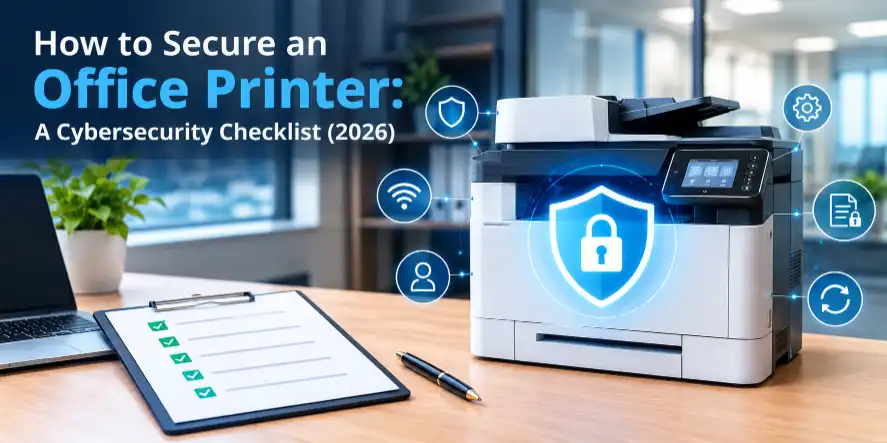
Think about the last time you worried about office security. You probably thought about laptops, email, or Wi-Fi. Did the printer cross your mind?
Probably not, and that's exactly why hackers like it.
Your office printer isn't just a paper machine. It's a small computer with its own memory, its own software, and its own connection to your network. Most of us treat it like a toaster: plug it in and forget it. This guide will help you stop doing that.
Here's a different way to think about it. Treat your printer like a new employee. It needs a name tag, a background check, a locker for private stuff, and a desk where people can see what it's up to. We'll use that idea all the way through, and you won't need a tech degree to follow along.
Why Modern Office Printers Are a Major Cybersecurity Risk
Printers have been around so long that we trust them without thinking. But today's printers do far more than print. They scan to email, connect to the cloud, and talk to your phone. Every one of those features is a door, and some of those doors are unlocked.
How do hackers exploit network-connected printers?
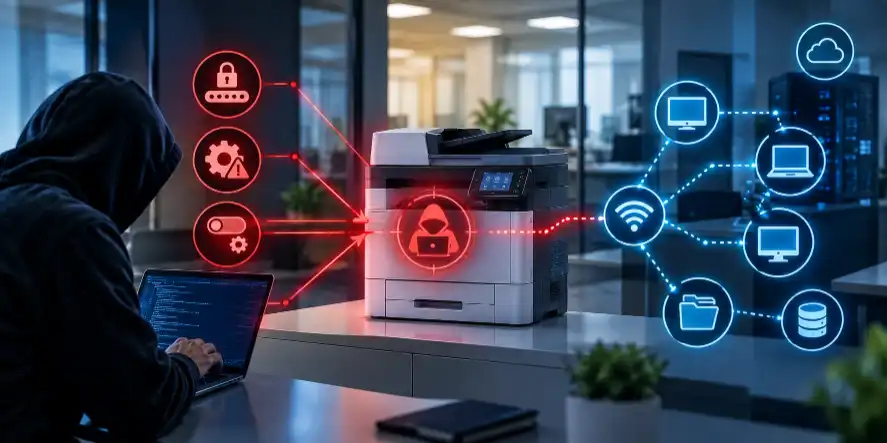
Hackers love easy targets, and printers are often exactly that. Here's why:
- Default passwords. Many printers ship with a login like "admin" and "1234," or no password at all. Hackers know these and try them first.
- Old software. Printer updates don't pop up like phone updates do. So printers often run old software with known holes for years.
- Unused features left on. Printers come with extras like old file-sharing tools and remote access, and most offices never use them. Every extra feature is one more way in.
Once a hacker is inside your printer, they can sit quietly and look around your network. From there, they can head for the computers that hold your customer files or bank details. The printer is just the side door nobody locked.
Do printers store sensitive data on internal hard drives?
Yes, and this surprises most people.
Many office printers and copiers have built-in storage. When you print, scan, or copy a document, a digital copy can be saved inside the machine. That might be a contract, a tax form, an ID, or a medical record. If nobody clears that storage, it can sit there for years.
Now picture what happens when your old printer is sold, returned at the end of a lease, or tossed in the trash. If that storage was never wiped, whoever gets the machine may get your documents too.
The hidden threat of unsecured remote printing
Since more people work from home or on the go, many offices let staff print from anywhere. It's handy, but if it isn't set up carefully, it can let strangers send jobs to your printer, or peek at what's being sent.
A printer that's reachable from the open internet is like a front door with no lock and a sign saying "come on in." Remote printing is fine, but it needs protection around it, which we'll cover below.
The Ultimate Office Printer Security Checklist
Grab a coffee and a pen. You can work through this list in an afternoon, and you can tick off the first few items in under 30 minutes.
1. Secure the Network Identity and Access Control
(This is your printer's name tag and ID badge.)
- Change the default password right now. This is the single most useful thing on the list. Pick something long, like three or four random words strung together ("purple-toaster-river-lamp"). Don't use "password" or your company name.
- Give your printer its own lane. If your router allows it, put the printer on a separate network from your main computers. Think of it as a guest wing of the building. If something goes wrong in the printer, it can't easily wander into the rooms where the important stuff lives. Your IT person or internet provider can help set this up.
- Turn off what you don't use. Open the printer's settings page and switch off things like old file-transfer tools, remote access, and extra ports you've never needed. If you're not sure what something does and nobody in your office uses it, it's usually safe to turn off. Check with your printer's help page first if you're unsure.
- Limit who can use it. Only people who work for you should be able to send jobs to the printer. Some printers let you require a login or a PIN.
- Keep your Wi-Fi tidy. Use a strong Wi-Fi password and change it when staff leave.
2. Harden the Printer Hardware and Firmware
(This is the background check, making sure your "employee" is trustworthy and up to date.)
- Update the firmware. "Firmware" is just the printer's built-in software. Makers release updates to fix security holes. Visit your printer maker's help page, type in your model number, and see if there's a newer version. Put a reminder in your calendar every three months.
- Turn on automatic updates if you can. If your printer offers it, say yes.
- Download updates only from the official source. Never install "driver update" files from random websites or pop-up ads. That's a common trick for slipping in malware.
- Retire printers that no longer get updates. If the maker has stopped providing updates for your model, it can't be fixed when new problems show up. It might be time to replace it. That's a real cost, but so is a data breach.
3. Implement Data Protection and Encryption
(This is the employee's private locker.)
"Encryption" sounds scary, but it simply means scrambling information so only the right people can read it. Think of it as writing in a secret code.
- Turn on encrypted printing. Look in your printer settings for options like "secure printing," "encrypted connection," or "HTTPS." Switch them on so documents are scrambled while they travel to the printer.
- Encrypt the printer's storage. If your printer has an internal drive, check whether it offers drive encryption and turn it on.
- Set up automatic cleanup. Many printers can automatically erase stored jobs after a set time. Use it.
- Wipe the printer before you part with it. Before selling, returning, or recycling a printer, run the "erase all data" or "factory reset" option. For machines with hard drives, ask the maker or a trusted recycler how to securely wipe or destroy the drive.
- Be careful with scan-to-email. If your scanner sends files to email, make sure it uses a secure connection, and double-check the email addresses it can send to.
4. Enforce Physical and Output Security Protocols
(This is the supervised desk, because security isn't only digital.)
Here's a quick test. Walk past your printer at the end of a normal workday. What's sitting in the output tray? If you can read someone's payroll, a client's address, or a medical note without even touching it, so can a visitor, a delivery driver, or the cleaning crew.
- Use "pull printing" or PIN release. The job only prints once the person arrives at the printer and types a code or taps a badge. No more forgotten pages in the tray.
- Put the printer in sight. Don't hide it in a back hallway where nobody would notice someone fiddling with it. Keep it where people can see it.
- Lock the paper trays on machines that hold special paper such as checks or letterhead.
- Shred, don't toss. Anything with personal or financial details should go in a shredder, not the recycling bin.
- Check the USB port. If anyone can plug in a USB stick and print or copy files, you have a physical backdoor. Turn that port off if you don't need it.
Advanced Print Security Trends for 2026
Once the basics are covered, here's what's coming next. You don't need to rush into any of this, but it helps to know where things are headed.
Moving toward Zero Trust Architecture (ZTA) in printing
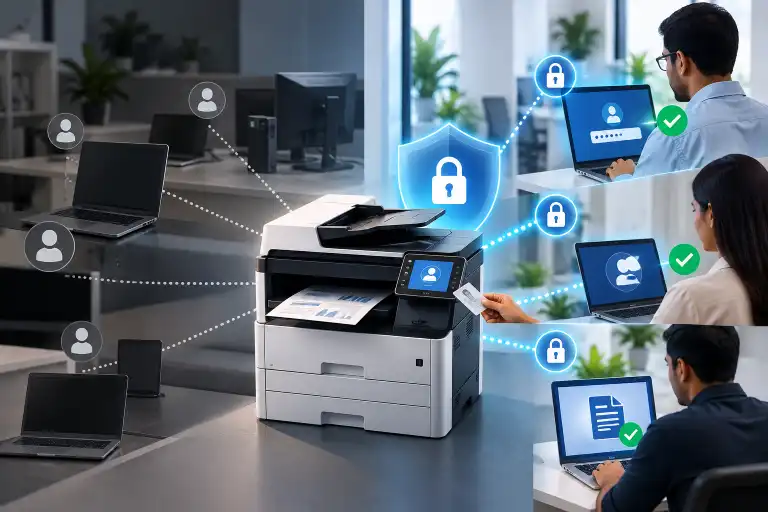
"Zero Trust" sounds complicated, but the idea is simple: never assume anyone or anything is safe just because it's inside your office.
In the old way of thinking, if a device was on your network, it was trusted. With Zero Trust, every device and every person has to prove who they are every time, even if they've been there for years. For printers, that means:
- Users log in before they can print.
- Printers only talk to the devices they really need to.
- Every request is checked, not waved through.
Many newer printers and print-management tools now handle this. If you're buying a new printer, ask whether it works with these kinds of controls.
AI-driven print anomaly and threat detection
Some modern print systems now use artificial intelligence (AI) to learn what "normal" looks like in your office. Then they flag anything odd. For example:
- Someone prints 500 pages at 2 a.m.
- A printer suddenly starts sending data to a strange place on the internet.
- A user prints files they've never touched before.
It works like a watchful security guard who knows everyone's habits. This is mostly found in business-grade printers and managed services today, and it's likely to become more common. It's not a replacement for the basics above, though. A smart alarm doesn't help if you left the door wide open.
Choosing a Secure Managed Print Service (MPS)
Maybe you read the checklist and thought, "I don't have time for all this." That's very common. A Managed Print Service (MPS) is a company that looks after your printers for you, including supplies, repairs, and, ideally, security.
If you're comparing providers, ask them these plain questions:
- How do you handle software updates? Look for a clear, regular schedule.
- Do you encrypt data on the printers you supply?
- What happens to the drive when a printer leaves my office? You want a clear answer about wiping or destroying data.
- Do you offer secure release printing?
- Who do I call if something goes wrong? And how fast do they respond?
- Can you show me a written security policy? A good provider won't be shy about it.
Be wary of any provider who answers with vague talk like "Don't worry, it's all handled." You want specifics.
When should you hire a professional tech service?
You can handle a lot yourself, but call in a pro if:
- You handle sensitive data, like health, legal, or financial records.
- You have more than a handful of printers or multiple office locations.
- Your printers are on the same network as your payment systems.
- You've noticed strange behavior, like jobs you didn't send, settings that changed on their own, or the printer going offline for no reason.
- You simply don't have the time, which is a perfectly good reason.
Hiring help isn't a sign you did something wrong. It's the same reason you hire an accountant instead of guessing at your taxes.
Your 5-Minute Quick-Start
If you do nothing else today, do these five things:
- Change the printer's default password.
- Check for a firmware update.
- Turn off features you don't use.
- Check the output tray at day's end.
- Write down the date you'll do this again, three months from now.
Final Thoughts
You don't need to be a tech expert to protect your office printer. You just need to treat it like what it really is: a connected computer that deserves the same care as the rest of your gear. Give it a name tag, keep it updated, protect what it stores, and keep an eye on who's using it.
Small steps now can save you from a very large headache later.