
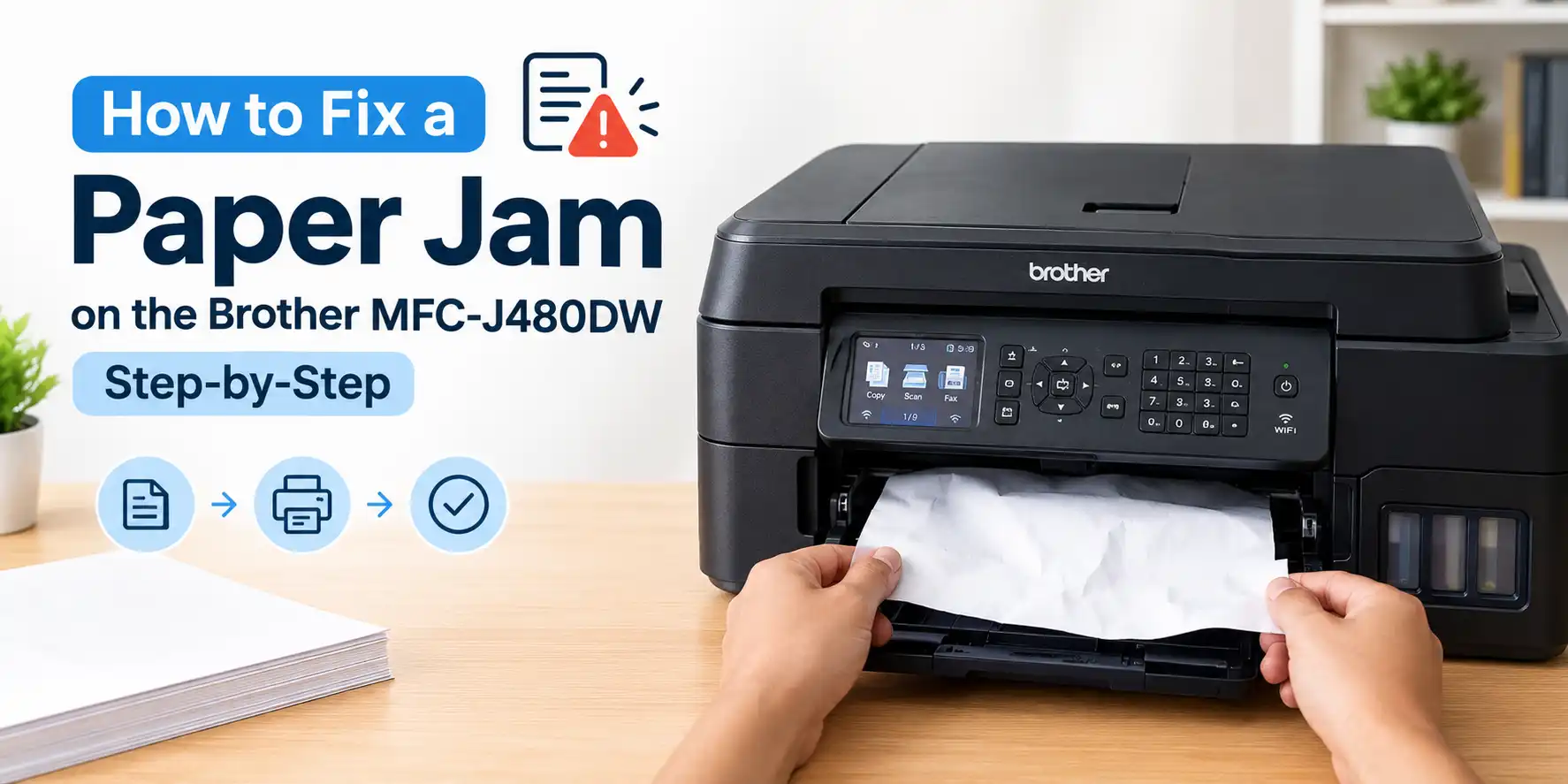
A jam on the MFC-J480DW looks scary, but it’s almost always a five-minute fix. Most people make it worse by yanking the page out hard. This guide covers the right order, how to read what the jammed sheet is telling you, and what to do when the error won’t go away.
Steps to Do Before Fixing Brother MFC-J480DW Paper Jam
- Check the screen. The LCD usually says something like Jam Inside/Front, Jam Front, or Jam Rear. It tells you where to look first.
- Save your faxes. This is an MFC, so it can hold faxes in memory. Brother advises transferring stored faxes to your computer or another fax machine before you unplug it, so you don’t lose them.
- Unplug the printer once you’ve done that. You’ll be reaching near the print head, so power should be off.
Step-by-Step: Clearing the Paper Jam on MFC-J480DW
Step 1: Pull out the paper tray. Take out all the paper and look into the empty tray slot with a flashlight. A torn corner often hides back there.
Step 2: Remove visible paper from the front. Pull it out slowly with both hands, straight toward you. If it resists, stop and try the back instead. A torn sheet leaves scraps that cause repeat jams.
Step 3: Open the Jam Clear Cover at the back. On some Brother models you squeeze two release levers first. Gently pull out whatever is behind it.
Step 4: Check under the print head. If the screen said Repeat Jam, paper may be hiding under the print head. With the power off, slide the head to one side by hand and look underneath. Then slide it the other way. Remove every scrap, even a tiny one.
Step 5: Put it back together. Close the Jam Clear Cover until it clicks, reload the tray, and plug the printer back in. Then fold the paper extension flap back out.
Step 6 (only for stubborn jams): the thick-paper trick. Brother’s own steps for related models say to feed one sheet of thick paper, such as glossy photo paper, through the manual feed slot. It can push out leftover bits you can’t see. If your unit has no manual feed slot, skip this.
Finish with a test copy or print to confirm the error is gone.
Read the Jammed Sheet Table
Once you’ve pulled the page out, look at it. It tells you why the jam happened, which is how you stop it from coming back.
| What the sheet looks like | Likely cause | Fix |
|---|---|---|
| Crumpled like an accordion near the back | Dirty or worn feed rollers | Clean the pick-up roller (see below) |
| Torn or bent corner | Tray guides too loose or too tight | Adjust guides until they just touch the stack |
| Two or more sheets stuck together | Humidity or stacked sheets clinging | Fan the stack and reload fewer sheets |
| Ink smears or smudges | Paper touching the print head | Check for scraps; use flatter paper |
| Curled or wavy sheet | Paper stored in a damp place | Swap in fresh paper kept sealed |
That table is what I check first on every jam, before I touch anything inside the machine.
Still Showing “Paper Jam” After You Cleared It?
Run through these in order:
- The rear cover isn’t fully closed. This is the most common cause. Press until you hear it click.
- A small scrap remains. Check under the print head and behind the rear cover again.
- The paper extension isn’t seated. Push it firmly into its slots.
- The printer needs a fresh start. Unplug it for about a minute, plug it back in, and let it finish its startup routine.
- Wrong paper size or type set. Make sure the printer’s paper setting matches what’s in the tray.
How to Clean the Pick-Up Roller
Dirty rollers are behind many repeat jams. Power the printer off, dampen a lint-free cloth with a little water (wrung out well), and gently wipe the rubber roller you can see through the tray opening. Let it dry completely before you reload paper. Don’t use alcohol or cleaning sprays on it.
Habits That Prevent Most Jams on Brother MFC-J480DW
- Fan the stack before loading, and don’t pack the tray full.
- Keep paper sealed in its wrapper until needed, away from damp rooms.
- Use one paper type at a time. Don’t top off a half-empty tray with a different brand.
- Never reuse wrinkled, stapled, or taped sheets.
- Keep the printer on a level surface with room behind it for the rear cover.
When to Stop DIY and Get It Looked At By Expert
If you hear grinding, the print head won’t move freely, or jams happen every few pages even with clean rollers and fresh paper, a worn part may be the cause. Forcing it can damage the machine, so that’s the point to have a technician look at it. You can connect with a Brother printer expert at (601) 568-1508.