
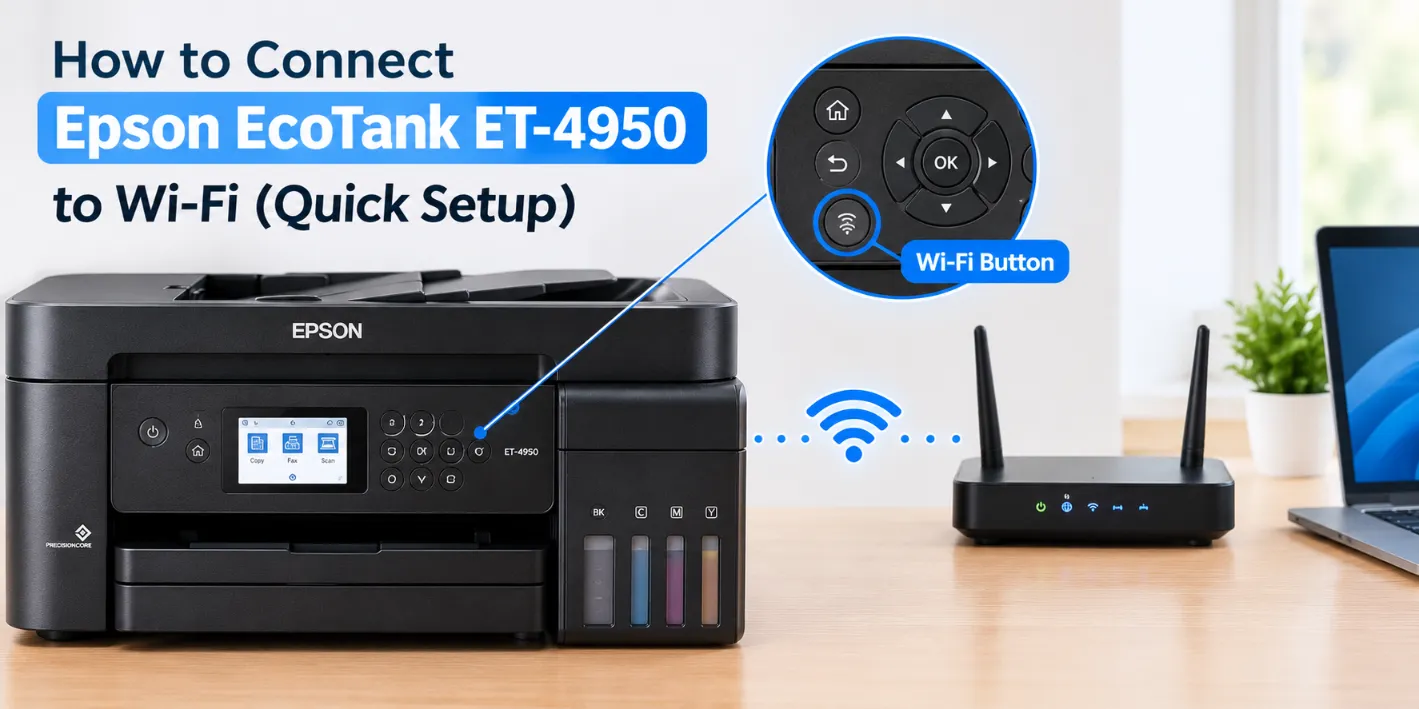
I’ve set up Epson printers more than a hundred times, and the ET-4950 is one of the easier ones. It has a touchscreen, so you can connect it to Wi-Fi right from the printer. No cables, no computer. Here’s how to connect Epson EcoTank ET-4950 to WiFi.
What You Need First For Epson EcoTank ET-4950 WiFi Setup
- Your Wi-Fi name and password. Both are usually on a sticker on your router. Passwords are case-sensitive, so capital letters matter.
- The printer turned on, with ink in the tanks, near your router.
Method 1: Connect From the Printer Touchscreen (Fastest)
- On the Home screen, tap the Wi-Fi icon.
- Select Wi-Fi (Recommended).
- Tap Start Setup (or Change Settings if it was connected before).
- Choose Wi-Fi Setup Wizard.
- Pick your network name from the list. If it isn’t listed, enter the name by hand.
- Type your password on the on-screen keypad. Double-check capital letters.
- Review the settings and tap Start Setup.
- When it says setup is complete, tap Close.
You’ll see the Wi-Fi icon on the screen showing the connection status. If it’s lit, you’re connected.
Method 2: Use the Epson Smart Panel App
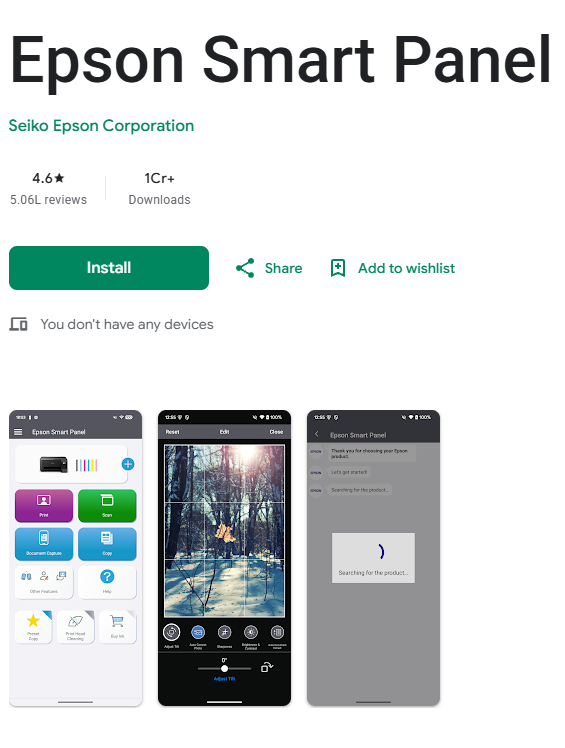
If typing on the touchscreen is a pain, use your phone:
- Download Epson Smart Panel (free) from the App Store or Google Play.
- Make sure your phone is on your home Wi-Fi and Bluetooth is on.
- Open the app and follow the steps to add your ET-4950.
If the app can’t find the printer, move your phone closer, or go back to Method 1.
Method 3: WPS Push Button (Only If Your Router Has a WPS Button)
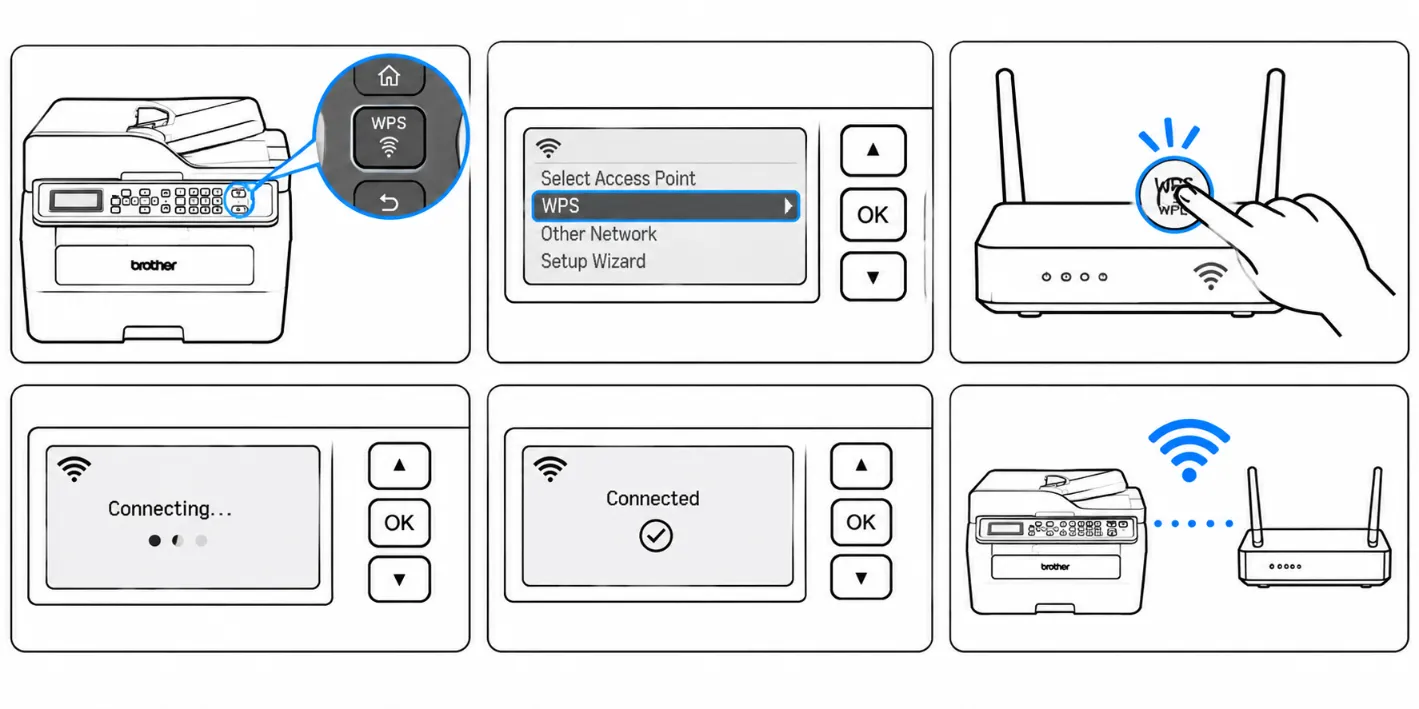
Pick this one only if your router has a WPS button. The printer’s Wi-Fi setup menu has a WPS option. Select it, then press the WPS button on your router within the time the screen gives you. Wait for the connection message.
If It Won’t Connect
- Wrong password is the number one cause. Retype it slowly. If setup fails, tap Re-enter or Print Check Report, and the report points to the problem.
- Network name not showing: Move the printer closer to the router. If your router has separate 2.4 GHz and 5 GHz names, try the 2.4 GHz one.
- Restart both. Turn off the printer and unplug the router for 60 seconds. Plug the router in first, wait two minutes, then turn the printer on and try again.
- Guest networks often block printers. Use your main network.
Final Step: Add It to Your Computer or Phone
Being on Wi-Fi isn’t enough. Your computer or phone still needs to know about the printer. Download the ET-4950 software from Epson’s website, or use the Smart Panel app on your phone. Make sure the device is on the same Wi-Fi network as the printer. Then print a test page.
That’s all there is to connecting the Epson EcoTank ET-4950 to Wi-Fi. If it's still not connected, contact printer experts at Printer Tech Services.