
How to reset Canon imageCLASS LBP622Cdw laser printer? There are three ways: a quick restart, a network reset, or a full factory reset. Start with the first one and only go further if you need to. I’ll walk you through each one. Let's start.
Which Reset Do You Need?
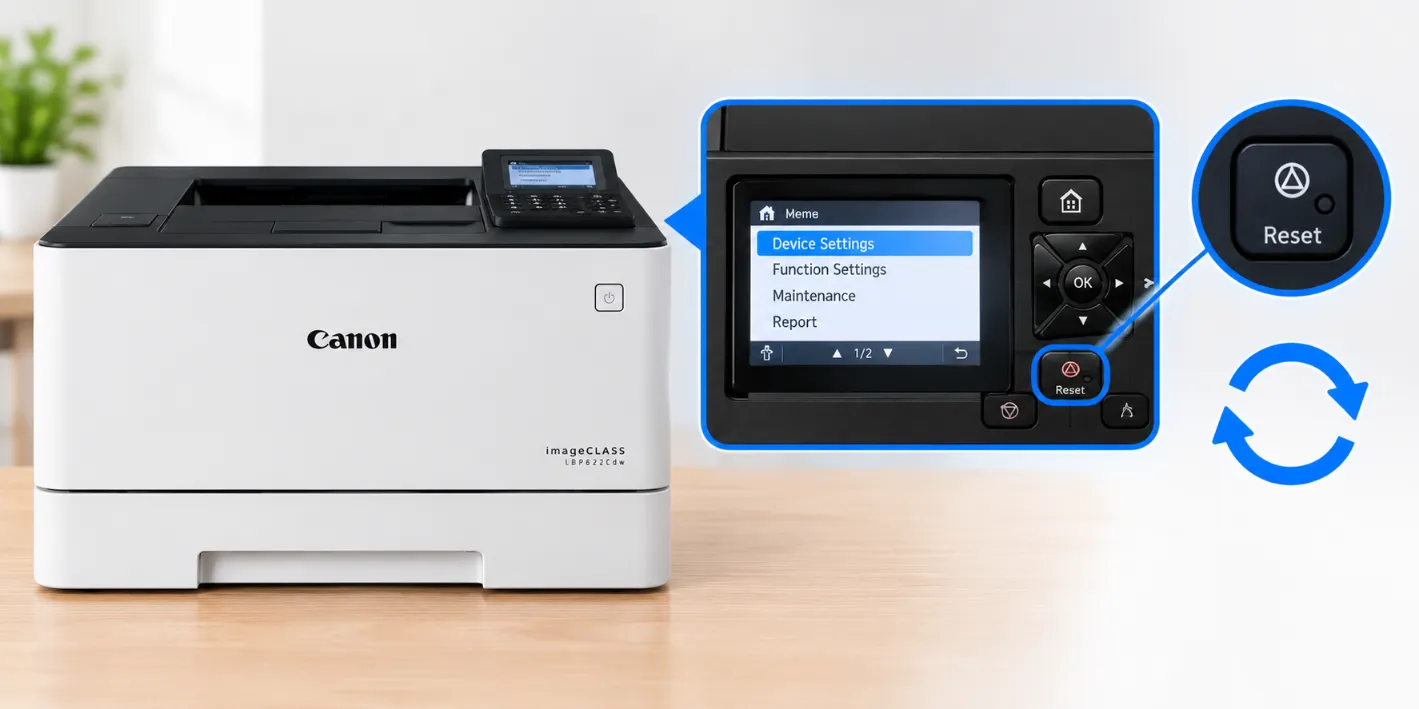
- Printer acting weird or frozen? Do the quick restart.
- Wi-Fi or network trouble? Do the network reset.
- Selling it, giving it away, or nothing else worked? Do the full factory reset.
Step 1: Quick Restart (Try This First)
- Turn the printer off with the power button.
- Unplug it from the wall for about 30 seconds.
- Plug it back in and turn it on.
This clears most small glitches and doesn’t erase anything.
Step 2: Reset Only the Network Settings
Use this when the printer won’t hold a Wi-Fi connection, or you got a new router. Your other settings stay as they are.
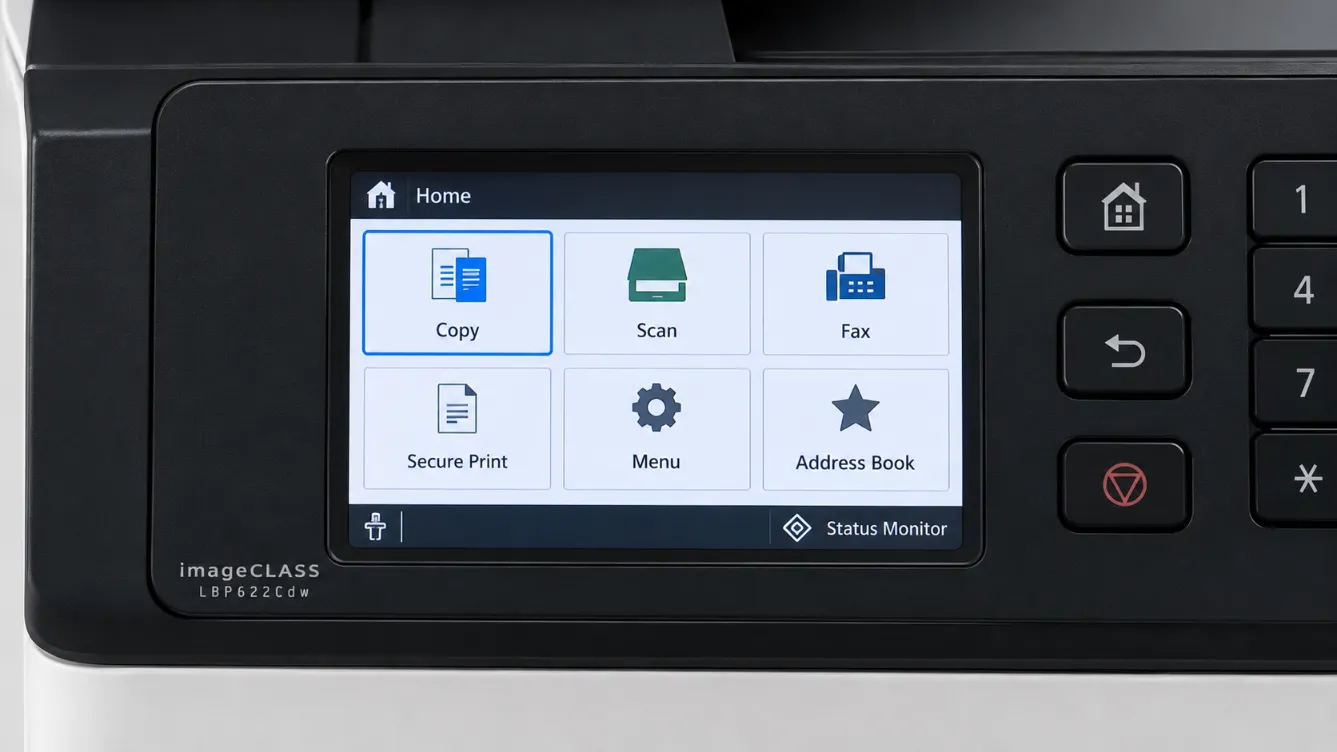
- Press Menu on the printer.
- Go to Preferences, then Network.
- Select Initialize Network Settings.
- Choose Yes.
- Restart the printer.
Afterward, connect it to your Wi-Fi again.
How to Reset Canon imageCLASS LBP622Cdw Laser Printer to Factory Settings
This is the big one. It wipes everything: your settings, network details, and saved data. So only do it when you’re sure.
- Press Menu.
- Go to Management Settings.
- Select Initialize All Data/Settings.
- Choose Yes, then confirm with Yes again.
- If it asks for a PIN, type it in.
- Wait for it to finish, then restart the printer.
Don’t turn it off while it’s working. It can take a while.
After the Reset
Your printer is now like it was when it came out of the box. Do these in order:
- Set the date and time if it asks.
- Reconnect to your Wi-Fi.
- Reinstall the printer on your computer or phone if it doesn’t show up. Remove the old printer entry first, then add it again.
- Print a test page.
That’s all there is to how to reset Canon imageCLASS LBP622Cdw laser printer. If you need any kind of expert help related to printers, connect with our printer technicans through contact us page.