
A few weeks ago, a friend of mine I'll call Carol in this blog, stopped me after church. Her new HP ENVY 6055e printer wouldn’t print. “It says it’s connected, then it says it’s not,” she told me. “I’ve been fighting it for three days.” She knew I'm a printer technician so she asked for my help.
She had an HP ENVY 6055e WiFi not working problem, and I smiled, because I’ve seen it hundreds of times. After 20 years of writing printer guides and fixing printers for businesses, friends and neighbors, I can tell you this: it’s almost never the printer that’s broken. It’s usually one small step that got skipped during setup.
Carol’s printer was fixed in about five minutes. Let me walk you through exactly what I did, in the same order.
Why Your HP ENVY 6055e Won’t Connect to WiFi
The 6055e has no screen. There’s no menu and no keyboard, so you can’t type your password into it directly. You do the HP ENVY 6055e setup through the HP Smart app on your phone or computer instead.
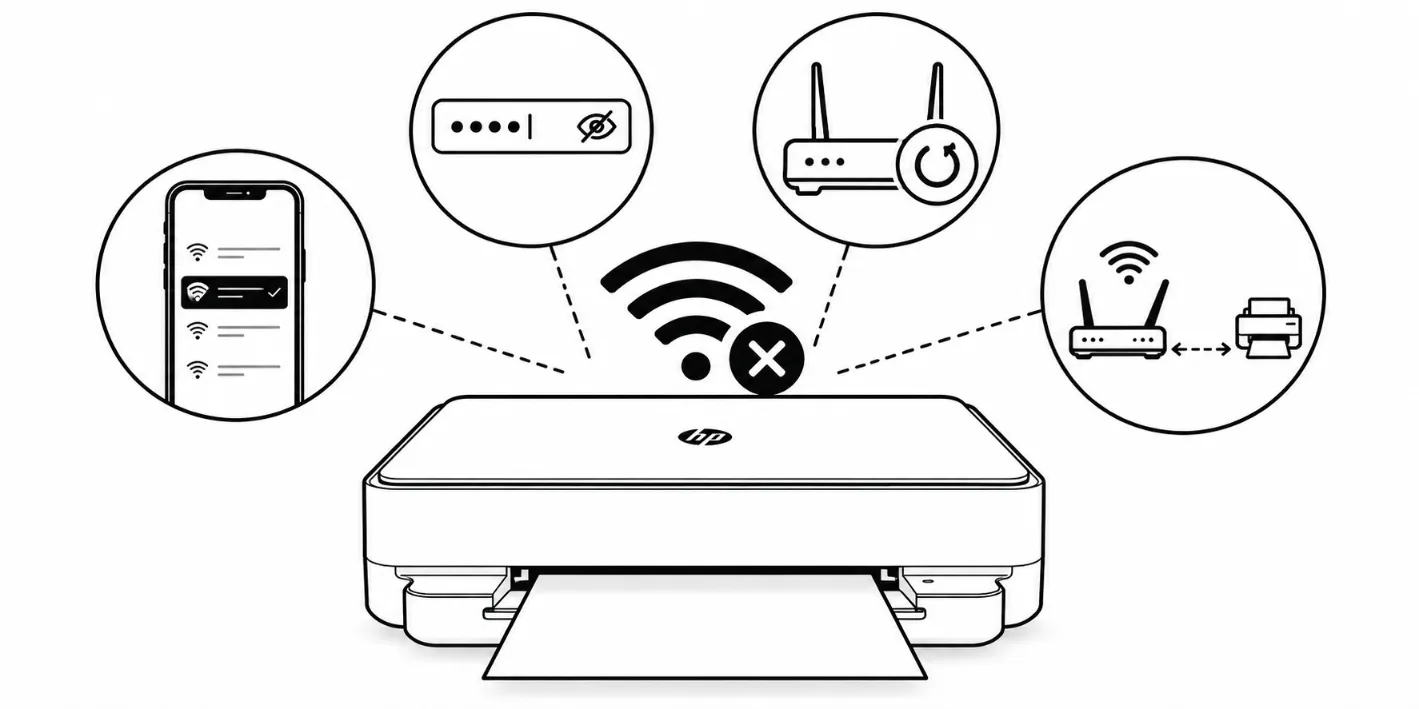
That’s where things go wrong. Here are the usual reasons an HP ENVY printer is not connecting to WiFi:
- The phone switched to a different WiFi network in the middle of setup.
- The password was typed wrong (capital letters matter).
- The router was changed or restarted, and the printer still remembers the old settings.
- The printer is too far from the router.
Carol had changed her internet company two weeks earlier. The printer was still looking for her old WiFi.
How To Fix HP ENVY 6055e WiFi Not Working
Follow these instructions in order and your HP Envy printer problem will be solved in just 5 minutes.
Step 1: Is your phone or tablet working on WiFi? If not, the problem is your router, not the printer. Unplug the router for 60 seconds, plug it back in, and give it three minutes to wake up.
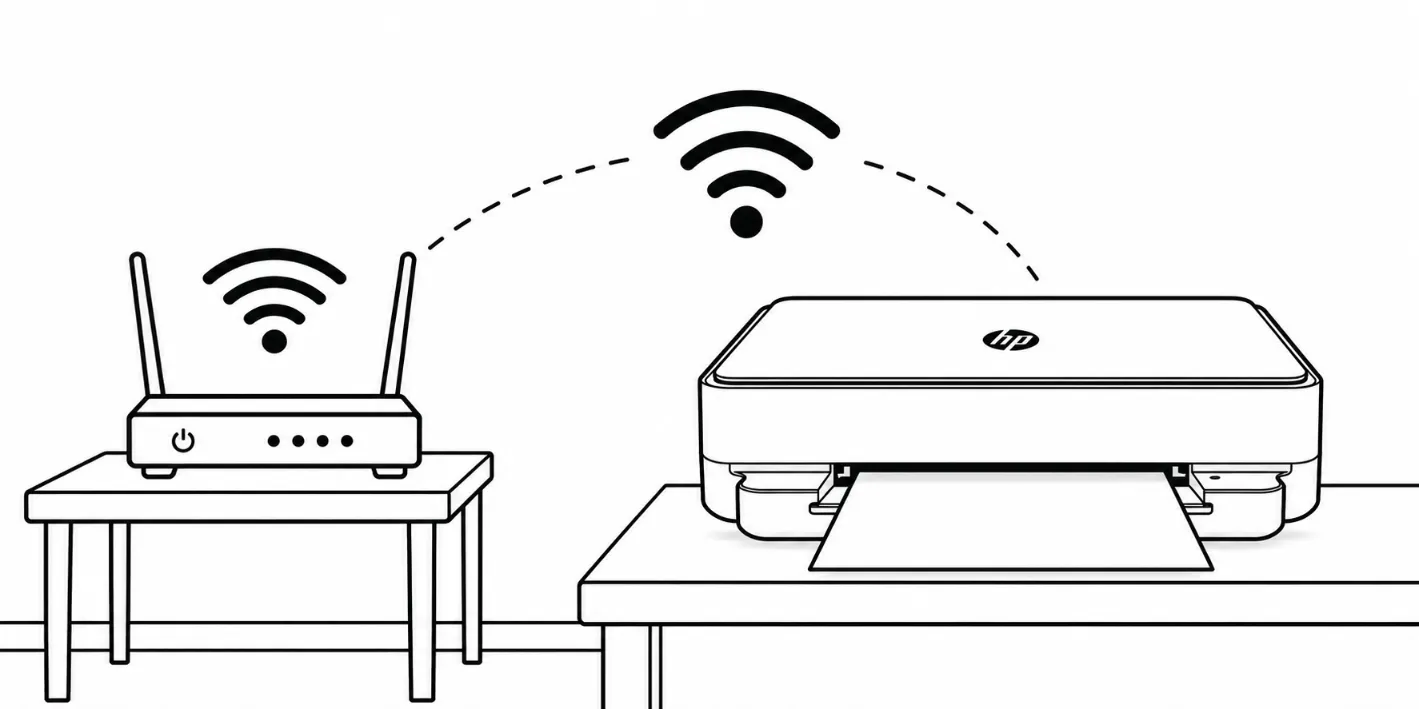
Step 2: For setup, put the printer in the same room as your router. Thick walls and distance are quiet troublemakers.
Step 3: Turn it off, unplug it for 30 seconds, then plug it back in.
Step 4: This is the step that fixed Carol’s HP ENVY 6055e. On the back of the printer, press and hold the Wireless button for about 5 seconds, until the light starts blinking. A blinking light means the printer is ready to hunt for a new connection. It’s like handing it a clean sheet of paper.
Step 5: Reconnect using the HP Smart app.
- Download HP Smart from your app store (free).
- Make sure your phone is on your home WiFi and Bluetooth is turned on. The app uses Bluetooth to find the printer during setup.
- Open the app and tap Add Printer.
- Pick your HP ENVY 6055e from the list.
- Choose your WiFi name and type the password carefully.
- Let the app finish. Don’t switch screens or WiFi networks while it works.
Step 6: When the printer connects, the wireless light stops blinking and stays solid. For a double check, press the Information button on the printer to print a Network Configuration page, which shows whether the printer has a proper network address. If it shows all zeros, or starts with 169.254, it hasn’t really connected, so go back to Step 1.
Most Common Causes of HP ENVY 6055e WiFi Not Working
- When people type the password too fast they sometimes end up typing the wrong password. This also happens when connecting the printer to WiFi.
- Not connecting both the printer and the phone to the same WiFi network also causes HP Envy 6055e printer offline issue.
- If you changed routers, delete the old printer in the HP Smart app and add it again. Otherwise it will remember the old WiFi network and won't be able to connect to your new router.
What if the HP ENVY 6055e Still Won’t Connect?
Try these before giving up:
- Allow the HP Smart app to use your location when it asks. Phones often need that permission to find nearby devices.
- Restart your phone, then run the HP ENVY 6055 connect to WiFi steps again.
- Update the HP Smart app.
- Keep the printer away from microwaves and cordless phones, which can disturb the signal.
If you’ve done a clean reset and followed every step with no luck, it may be time to call Printer Tech Services and have them take a look.
Your HP ENVY 6055e WiFi not working problem is very likely a small thing, and you can fix it yourself. Take your time, go step by step, and you’ll be printing again.